Home


About
In this code snippet, we will take a look at thread synchronization with Monitor and Lock in C#.
In this post, I showed how to start new threads to execute code in parallel. However, when you start using threads what can happen is that two threads will access the same resources at the same time. One thread might modify a variable before another thread is done executing. This can, of course, cause errors.
To prevent this from happening we have to lock the resources in question and prevent other threads from using them until the current thread is done executing. We can do this by either using the Monitor class or the lock keyword. These two approaches are functionally identical. The only difference (as you will be able to see in the code below) is that lock is more compact and easier to use.
You will notice that we have to provide Monitor.Start/Monitor.End and lock an object to lock on. The object being locked is just some “random” object we create to lock on(more specifically it’s synchronization block). Any properties of that object can actually still be accessed by another thread while the object is locked. The code between Monitor.Enter and Monitor.Exit or inside the lock code block is the actual code that is locked and is not allowed to be modified by another thread. Kind of silly and confusing isn’t it? But that is how it works.
Let’s have a look at the code below to see how to lock resources.
Code:
using System;
using System.Threading;

namespace ThreadMonitor
{
    class Program
    {
        static void Main(string[] args)
        {
            WaterTank tank = new WaterTank();

            //Thread unsafe code. Mutiple threads will be accessing same class property.
            Thread th1 = new Thread(delegate () { tank.dispenseWater(400); });
            Thread th2 = new Thread(delegate () { tank.dispenseWater(500); });
            Thread th3 = new Thread(delegate () { tank.dispenseWater(400); });
            Thread th4 = new Thread(delegate () { tank.dispenseWater(500); });

            /*
            //Thread safe code.
            Thread th1 = new Thread(delegate () { tank.dispenseWaterThreadSafe(400); });
            Thread th2 = new Thread(delegate () { tank.dispenseWaterThreadSafe(500); });
            Thread th3 = new Thread(delegate () { tank.dispenseWaterThreadSafe(400); });
            Thread th4 = new Thread(delegate () { tank.dispenseWaterThreadSafe(500); });
            */

            /*
            //Thread safe code.
            Thread th1 = new Thread(delegate () { tank.dispenseWaterThreadSafeLock(400); });
            Thread th2 = new Thread(delegate () { tank.dispenseWaterThreadSafeLock(500); });
            Thread th3 = new Thread(delegate () { tank.dispenseWaterThreadSafeLock(400); });
            Thread th4 = new Thread(delegate () { tank.dispenseWaterThreadSafeLock(500); });
            */

            //Start threads.
            th1.Start();
            th2.Start();
            th3.Start();
            th4.Start();

            Console.ReadLine();
        }
    }

    class WaterTank
    {
        public int waterQuantity { get; set; }

        public WaterTank()
        {
            //On instantiation of the class "fill" up the tank.
            waterQuantity = 1000;
        }

        public void dispenseWater(int liters)
        {
            //After putting this code in the lock code block we no longer get the previous.
            if ((waterQuantity - liters) > 0)
            {
                //Simulate doing some time consuming work.
                Thread.Sleep(1000);

                //Update water quantity.
                waterQuantity = waterQuantity - liters;

                //Display dispensed and remainig water.
                Console.WriteLine("Dispensed " + liters + " liters of water. " + waterQuantity + " liters remaining.");
            }
            else
            {
                Console.WriteLine("There is not enough water.");
            }
        }


        //Create an object to lock on.
        private Object quantityLock = new Object();

        public void dispenseWaterThreadSafe(int liters)
        {
            //Lock the object and prevent any other code from executing the code below until the current thread is done executing.
            Monitor.Enter(quantityLock);
            try
            {
                //////////////////////////////////////////////////////////////////////////////
                //The object being locked is just something to lock on and any properties of that object can actually still be accessed by another thread.
                //The code in here (between Monitor.Enter and Monitor.Exit) is the actual code that is locked and is not allowed to be modified by another thread.
                //Kind of silly and confusing isn't it? But that is how it works.

                if ((waterQuantity - liters) > 0)
                {
                    //Simulate doing some time consuming work.
                    Thread.Sleep(1000);

                    //Update water quantity.
                    waterQuantity = waterQuantity - liters;

                    //Display dispensed and remainig water.
                    Console.WriteLine("Dispensed " + liters + " liters of water. " + waterQuantity + " liters remaining.");
                }
                else
                {
                    Console.WriteLine("There is not enough water.");
                }

                ////////////////////////////////////////////////////////////////////////////
            }
            finally
            {
                //Release the lock and allow other threads to execute the code above.
                Monitor.Exit(quantityLock);
            }
        }

        public void dispenseWaterThreadSafeLock(int liters)
        {
            //The lock keyword is just a more compact and easier way of doing what we did in the method dispenseWaterThreadSafe() with Monitor.
            lock (quantityLock)
            {
                if ((waterQuantity - liters) > 0)
                {
                    //Simulate doing some time consuming work.
                    Thread.Sleep(1000);

                    //Update water quantity.
                    waterQuantity = waterQuantity - liters;

                    //Display dispensed and remainig water.
                    Console.WriteLine("Dispensed " + liters + " liters of water. " + waterQuantity + " liters remaining.");
                }
                else
                {
                    Console.WriteLine("There is not enough water.");
                }
            }
        }
    }
}
Resulting output:


About
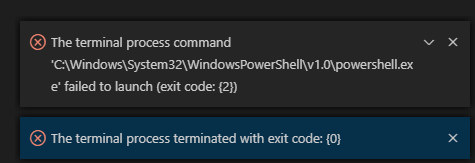
A couple of days ago I stumbled upon these errors. I was unable to start up my C# .NET Core app and debug it(Task “clean” failed with exit code “1”). When I tried to access the terminal it crashed leaving me with the following errors:
- The terminal process command ‘C:\WINDOWS\System32\WindowsPowerShell\v1.0\powershell.exe’ failed to launch (exit code: {2})
- The terminal process terminated with exit code: {1}
- The terminal process terminated with exit code: {0}

Solution
I saw quite a few cases of these errors showing up for different reasons on the VS Code Github issues pages. In my particular case, the problem was the antivirus. Apparently, it was blocking something. The solution was to simply whitelist(exclude from detection) the installation directory of Visual Studio Code.

Hopefully, this has helped.
About
In this code snippet, we will take a look at event arguments in C#.
Event arguments allow you to pass data(from publisher to subscriber) with the event when it is triggered. To return data with an event you must make a class that inherits from the EventArgs class. In this new derived class you can add the properties you want to send. Then you return this EventArgs child class with the event.
See this post if you want to know more about events themselves.
Let’s have a look at the code below to see how to use event arguments.
Code:
using System;

namespace EventArguments
{
    class Program
    {
        static void Main(string[] args)
        {
            Switch sw = new Switch();
            Light light = new Light(sw);

            //Toggle the switch.
            sw.lightSwitchToggle("on");
            sw.lightSwitchToggle("off");

            Console.ReadLine();
        }
    }

    class Switch
    {
        //Make a delegate.
        public delegate void ToggleDelegate(object sender, SwitchEventArgs e);

        //An event is basically a restricted delegate.
        //Other classes can only subscribe or unsubscribe from the event and can't invoke or assign it like a delegate.
        public event ToggleDelegate toggleEvent;

        //When this method is called the event will be invoked.
        public void lightSwitchToggle(string text)
        {
            //Pass toggleEvent this specific Switch class instance and the SwitchEventArgs object containig the data that we want to send.
            toggleEvent(this, new SwitchEventArgs(text));
        }
    }

    //Define the event arguments object that will carry our data from the "publisher" to the "subscriber".
    public class SwitchEventArgs : EventArgs //Inherit from EventArgs and make a custom event argument.
    {
        public SwitchEventArgs(string Text)
        {
            text = Text;
        }
        public string text { get; set; }
    }

    class Light
    {
        Switch sw;
        public Light(Switch SW)
        {
            //Give Light a reference to the instance of Switch.
            sw = SW;

            //Add/chain/subscribe a new method on the event.
            sw.toggleEvent += turnOnTheLight;
        }

        private void turnOnTheLight(object sender, SwitchEventArgs e)
        {
            Console.WriteLine("The light was turned " + e.text + ".");
        }
    }
}
Resulting output:

About
In this code snippet, we will see how to exchange thread data by using an object in C#.
This post is very similar to this post I already made about sending/receiving data to/from a thread. The only difference is that here an object will be used for the data.
To pass data into the thread we will create a class and make two properties one for the input data and one for the callback delegate. When an instance of the class is being created the input data and the callback delegate must be passed into the constructor. After the object has been created its doWork() method can be started as a new thread.
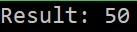
To get data out of the thread displayResult() will be called when doWork() is done executing. The result data will be passed as an input parameter to displayResult().
Note: In most cases, the best way to work with threads is by using the TPL(Task Parallel Library). Consider using it instead of working with threads directly like shown in this post.
Let’s have a look at the code below to see how to exchange thread data by using an object.
Code:
using System;
using System.Threading;

namespace ThreadDataExchangeByObject
{
    //Define callback delegate.
    public delegate void doWorkCallback(int result);

    class Program
    {
        static void Main(string[] args)
        {
            //Make delgate that will call the displayWorkDone() method and pass it the value given the doWork() method from the MyClass class.
            doWorkCallback callback = new doWorkCallback(displayWorkDone);

            //Make an instance of MyClass.
            MyClass MC = new MyClass(5, callback);

            //Call doWork in new thread.
            Thread th = new Thread(MC.doWork);

            //Thread strat.
            th.Start();


            Console.ReadLine();
        }

        public static void displayWorkDone(int result)
        {
            Console.WriteLine("Result: " + result);
        }
    }

    class MyClass
    {
        int myParemeter;
        doWorkCallback callback;

        public MyClass(int parameter, doWorkCallback callbackIn)
        {
            //On class instantiation set the input parameter for the doWork method and
            //set the callback method that will be used to return back the data.
            myParemeter = parameter;
            callback = callbackIn;
        }

        public void doWork()
        {
            int result = 0;

            for (int i = 0; i < myParemeter; i++)
            {
                //Do some work....
                Thread.Sleep(500);
                result += 10;
            }

            //Pass the result to the callback method.
            callback(result);
        }
    }
}
Resulting output:
About
In this code snippet, we will see how to pass/get data to/from a thread in C#.
To pass data into the thread we will simply pass it as an input parameter to the method that is being started as a new thread.
To get the data from the thread a delegate callback method will be used. First, we will make a regular method that takes in an input parameter. Then we will make a delegate and make it point to this method. Finally, the delegate will be passed as an input parameter to the method that is being started as a new thread. When the child thread is done executing it will call the callback method that is located in the main thread and pass it the result as an input parameter. This is how we will be able to get the result from the child thread back into the main one.
See this post if you want to know how to exchange data with a thread by using an object. It is very similar to what we are doing here.
Note: In most cases, the best way to work with threads is by using the TPL(Task Parallel Library). Consider using it instead of working with threads directly like shown in this post.
Let’s have a look at the code below to see how to pass/get data to/from a thread.
Code:
using System;
using System.Threading;

namespace sendingAndReceivingDataFromAThread
{
    class Program
    {
        static void Main(string[] args)
        {
            //This delegate will be called when the thread is done executing.
            doWorkCallback callback = new doWorkCallback(displayWorkDone);

            int threadInputData = 5;

            //doWork() runs as a separate thread. We pass it the data and the callback delegate.
            Thread workThread = new Thread(() => doWork(threadInputData, callback));

            //Run thread.
            workThread.Start();

            Console.ReadLine();
        }

        public delegate void doWorkCallback(int result);

        public static void displayWorkDone(int result)
        {
            Console.WriteLine("Result: " + result);
        }

        static void doWork(int n, doWorkCallback callback)
        {
            int result = 0;

            for (int i = 0; i < n; i++)
            {
                //Do some work....
                Thread.Sleep(1000);
                result += 10;
            }

            //Call the callback delegate which points to the displayWorkDone() method and pass it the result to be returned from the thread.
            callback(result);
        }
    }
}
Resulting output:

About
In this code snippet, we will take a look at threads in C#.
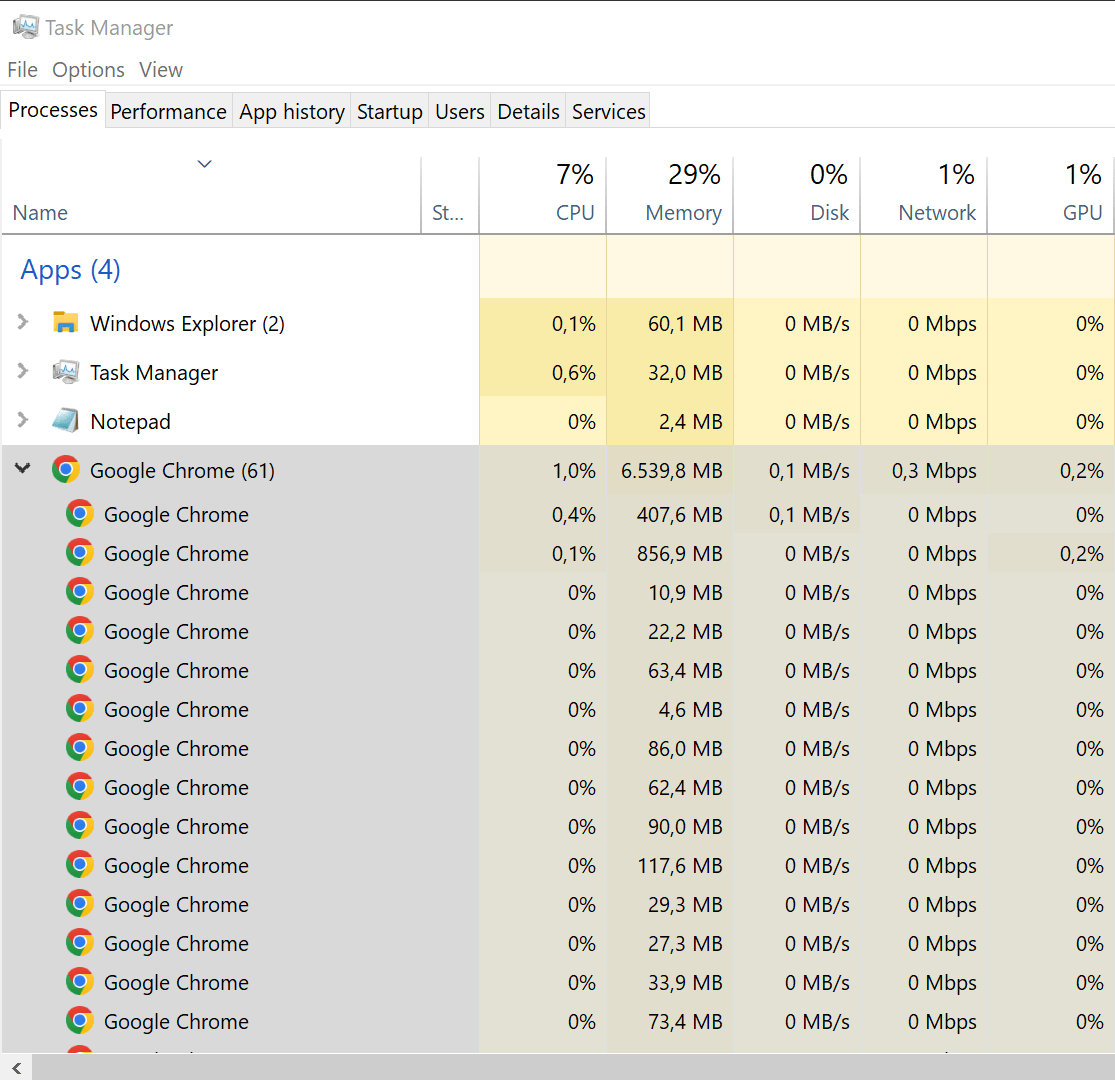
To explain what a thread is let’s first start off with the explanation of what a process is. A process is an instance of your application. The OS will assign it a chunk of virtual memory, execution context(program counter, registers, PID, …) and resource handles. One process can have multiple child processes, your web browser is a good example of this:
Each process starts with one main thread. From there you can create new threads to execute code in parallel or asynchronously to the main thread. For more information about program memory segmentation see this post I made.
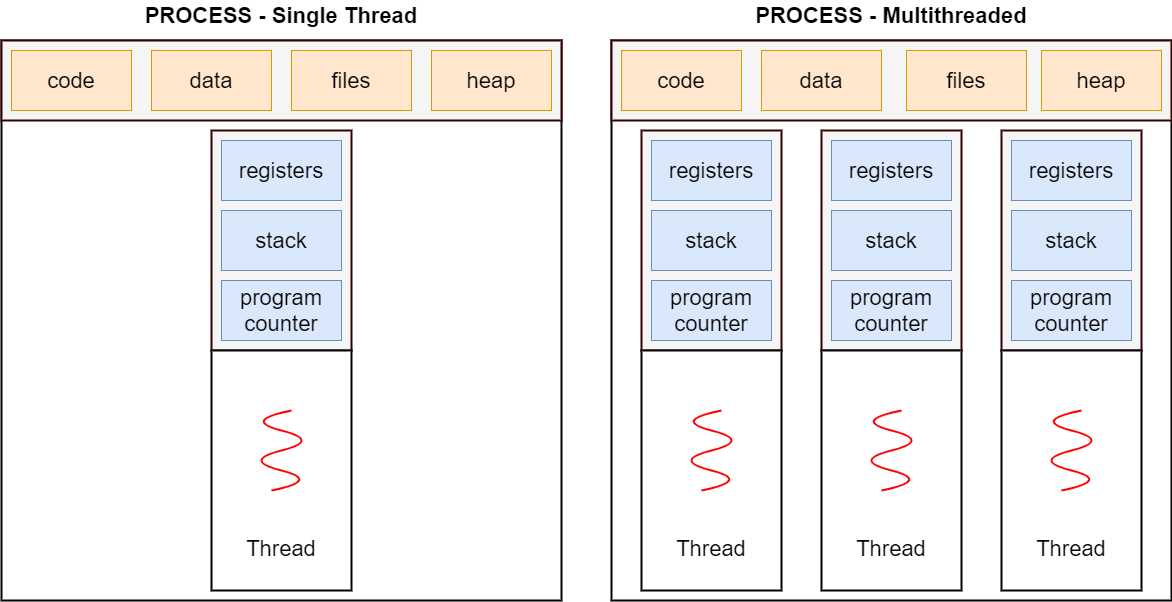
Usually, the code we write executes procedurally(line by line). So if we have a time-consuming task like writing to a file(which can be very slow compared to the speed at which things happen in the CPU) our program will have to wait for that operation to be over before continuing with its execution.
You can solve this problem by making a new child thread that will branch off the main one and run in parallel. This way the main thread can continue to run and the time-consuming operation will be executing in the child thread and not holding up the main one. I should also note that it makes sense to use a new thread only for CPU bound operations and not for I/O bound ones. See this post I made for more information on the topic.
By default, threads are started as foreground threads. If you want to make a background thread you must set the IsBackground property to true before starting it. The difference between these two is that the foreground threads will keep running until they are done even if the parent thread was terminated. Meanwhile, a background thread will terminate when its parent thread is terminated even if it still has work to do.
Note:
Most of the time the threads don’t actually run in parallel. Each one gets to run for some time after that CPU time is given to another one. It all just happens so fast it appears as if things are running in parallel.
If you open up your task manager and look at the number of threads running you will see that you are probably running thousands of threads at once and you probably have something like 4-16 physical cores(and 8-32 virtual cores if your CPU supports hyperthreading). If we hand as many CPU cores as we have threads than all our threads could truly run in parallel. But it this case only 4-32 threads will actually run-in parallel.
Let’s have a look at the code below to see how to use threads.
Layout:
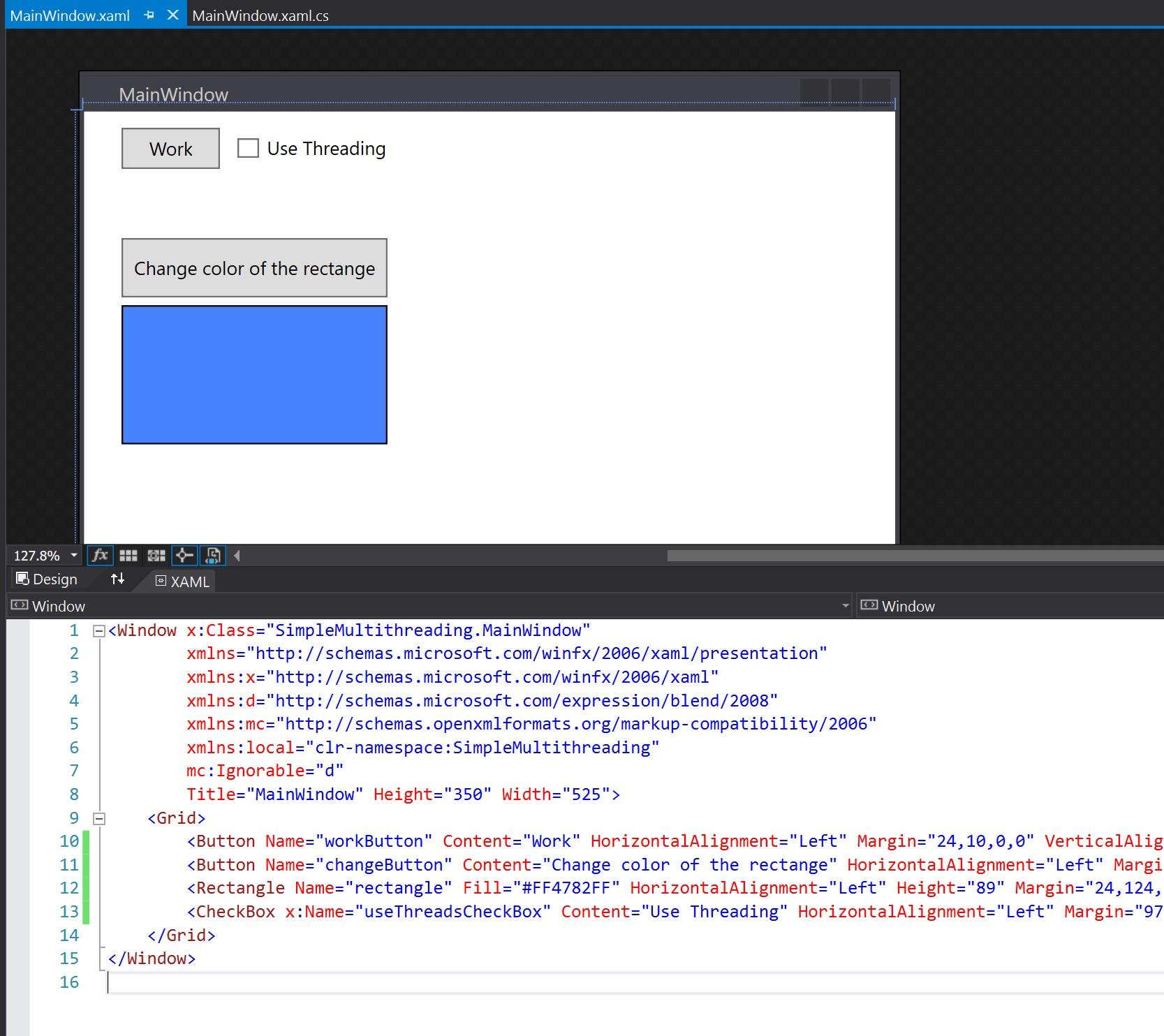
Code:
using System.Threading;
using System.Windows;
using System.Windows.Media;

namespace Threads
{
    /// <summary>
    /// Interaction logic for MainWindow.xaml
    /// </summary>
    public partial class MainWindow : Window
    {
        public MainWindow()
        {
            InitializeComponent();
        }

        private void changeButton_Click(object sender, RoutedEventArgs e)
        {
            //Change rectangle colors.
            if (rectangle.Fill == Brushes.Red)
            {
                rectangle.Fill = Brushes.Blue;
            }
            else
            {
                rectangle.Fill = Brushes.Red;
            }
        }

        private void workButton_Click(object sender, RoutedEventArgs e)
        {
            if ((bool)useThreadsCheckBox.IsChecked)
            {
                //Now doWork() runs as a separate thread. The app is now responsive even when doWork() runs.
                Thread workThread = new Thread(doWork);

                //Run thread.
                workThread.Start();

                /*1.*/ //Thread workThread = new Thread(doWork);

                //This can be written in the following ways as well(using a delegate):

                /*1.1*/ //Thread workThread = new Thread(new ThreadStart(doWork));

                /*1.2*/ //Thread workThread = new Thread(()=> doWork());

                /*1.3*/ //Thread workThread = new Thread(delegate() { doWork(); });
            }
            else
            {
                //The app will be unresponsive  untill doWork() is finsihed.
                doWork();
            }
        }

        //This method does time consuming work.
        static void doWork()
        {
            Thread.Sleep(4000);
        }
    }
}
Resulting output:
About
In this code snippet, we will take a look at events in C#.
A class(subscriber class) can subscribe to an event of another class(publisher class). The publisher class notifies the subscriber class every time the event occurs. This works by using delegates. The subscriber will pass its delegate to the publisher class to “make a subscription” to its event. When the event occurs the publisher will call the delegate(callback method) that was provided to it by the subscriber when it “subscribed” to the event. This is how (for example button press events) events work in .NET. This principle of operation is also called the observer pattern.
See this post if you want to know how to send event arguments(pass data with the event) along with your events.
Important Notes:
Unsubsribing: The subscriber classes should always unsubscribe from the publisher class before being disposed of to prevent memory leaks. This can be done by using -= (see in the example below). I would recommend you do this in the destructor of your subscriber class.
Lambda Expression: If you subscribe to an event using an anonymous function(lambda expression) you can’t easily unsubscribe. So only use anonymous functions to subscribe to events when you know you won’t need to unsubscribe for the entire lifecycle of your program.
Let’s have a look at the code below to see how to use events.
Code:
using System;

namespace Events
{
    class Program
    {
        static void Main(string[] args)
        {
            //Make new switch.
            Switch sw = new Switch();
            //Make new light and add the event.
            Light light = new Light(sw);

            //Toggle the switch.
            sw.lightSwitchToggle();

            Console.ReadLine();
        }
    }

    class Switch
    {
        //Make a delegate.
        public delegate void ToggleDelegate();

        //An event is basically a restricted delegate.
        //Other classes can only subscribe or unsubscribe from the event and can't invoke or assign it as if it was a delegate.
        public event ToggleDelegate toggleEvent;

        //When this method is called the event will be invoked.
        public  void lightSwitchToggle()
        {
            toggleEvent();
        }
    }

    class Light
    {
        Switch sw;
        public Light(Switch SW)
        {
            //Give Light a reference to the instance of Switch.
            this.sw = SW;

            //Add/chain a new method on the event.
            this.sw.toggleEvent += turnOnTheLight();

            //Remove event if desired.
            //sw.toggleEvent -= turnOnTheLight();
        }

        private void turnOnTheLight()
        {
            Console.WriteLine("The light was toggled.");
        }
    }
}
Resulting output:

About
In this code snippet, we will take a look at delagates in C#.
A delegate is a pointer to a method(basically an indirect call to the method). Delegates can be passed as input parameters to other methods. A benefit of this is that it provides flexibility. Such a method can then use the passed in delegate to call another method(callback method). This is actually the way events work in .NET.
Let’s have a look at the code below to see how to use delegates.
Code:
using System;

namespace Delegates
{
    class Program
    {
        static void Main(string[] args)
        {
            //A delegate is a pointer to a method. Basically an indirect call to the method.
            //The benefit of not calling a function directly but using a delegate to do so is flexibility.
            //For example:

            //Example 1/////////////////////////////////////

            //The delegate instance now points to myMethod. But it could point to any method with the same signiture.
            myDelegateMethod myDelegate = new myDelegateMethod(myMethod);

            //But why use a delegate like so ...
            myDelegate("Hi.");

            //... insetad of just calling the method like this.
            myMethod("Hi.");

            ////////////////////////////////////////////////


            //Example 2/////////////////////////////////////

            //Here is an example of when it makes sense to use a delegate.

            Operation op = new Operation(add);

            //We can just pass a reference to the method that we want to invoke.
            calculateSomething(10, 5, op);

            op = new Operation(subtract);

            calculateSomething(10, 5, op);

            ///////////////////////////////////////////////

            Console.ReadLine();
        }

        //Example 1/////////////////////////////////////////

        public delegate void myDelegateMethod(string inputText);

        public static void myMethod(string inputText)
        {
            Console.WriteLine(inputText);
        }

        ////////////////////////////////////////////////////


        //Example 2////////////////////////////////////////
        public static void calculateSomething(double a, double b, Operation op)
        {
            double result = op(a, b);

            //Do some calculating.
            // ...

            Console.WriteLine("Result: " + result);
        }

        //Delegate declaration.
        public delegate double Operation(double a, double b);

        //The following methods all have the same signiture(input parameters). Consequently they can all be delegated by the "Operation" delegate.
        public static double add(double a, double b)
        {
            return a + b;
        }

        public static double subtract(double a, double b)
        {
            return a - b;
        }

        public static double multiply(double a, double b)
        {
            return a * b;
        }
        public static double divide(double a, double b)
        {
            return a / b;
        }

        ///////////////////////////////////////////////////
    }
}
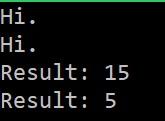
Resulting output:
About
In this code snippet, we will see how to use the Open File Dialog in WFA C# apps.
In this example, I will use a WFA application. If you just want to know how to create/read/write files check out this example with a console application.
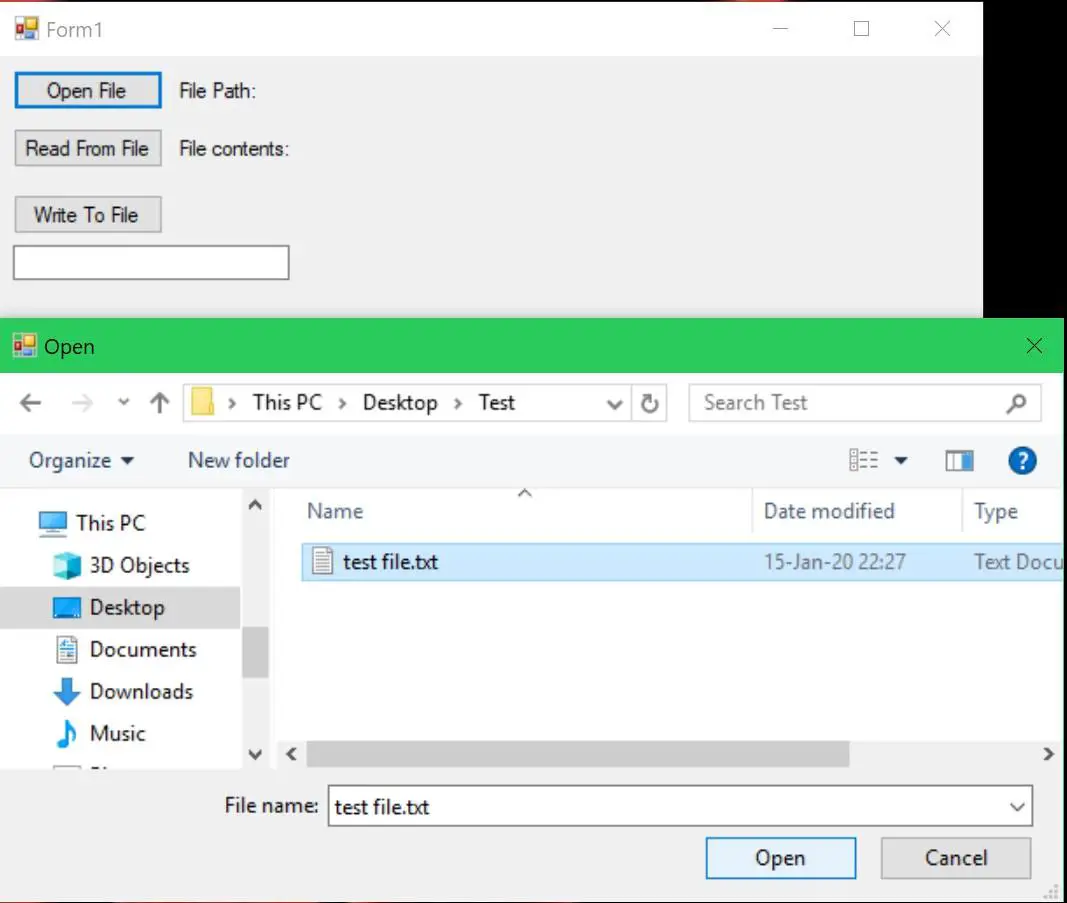
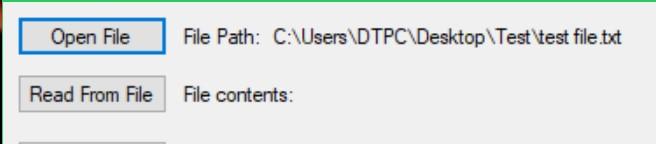
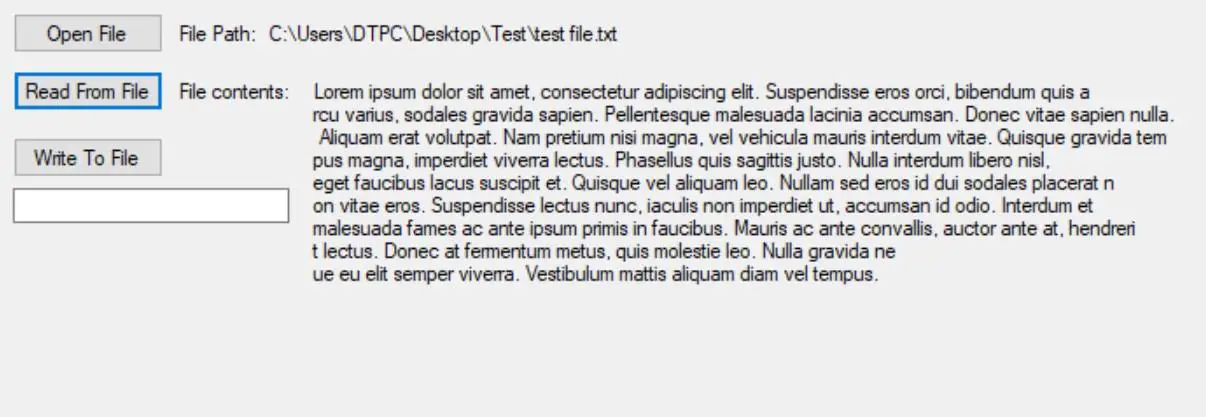
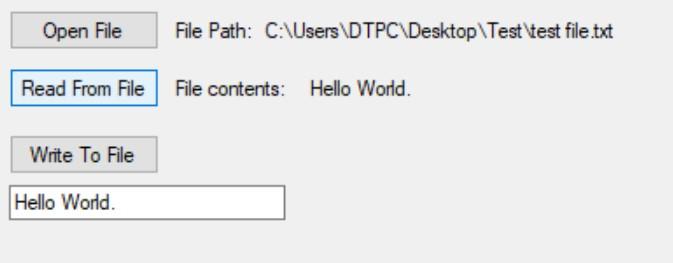
When we click the “Open File” button a file dialog will open. After selecting a file the path will get saved in a variable. Then we can either read or write to the selected file. We will be using the StreamWriter class to write to the file and the StreamReader class to read from the file. All these operations need to performed inside a try catch block to prevent the application from crashing if an exception occurs.
Let’s have a look below to see how to implement this.
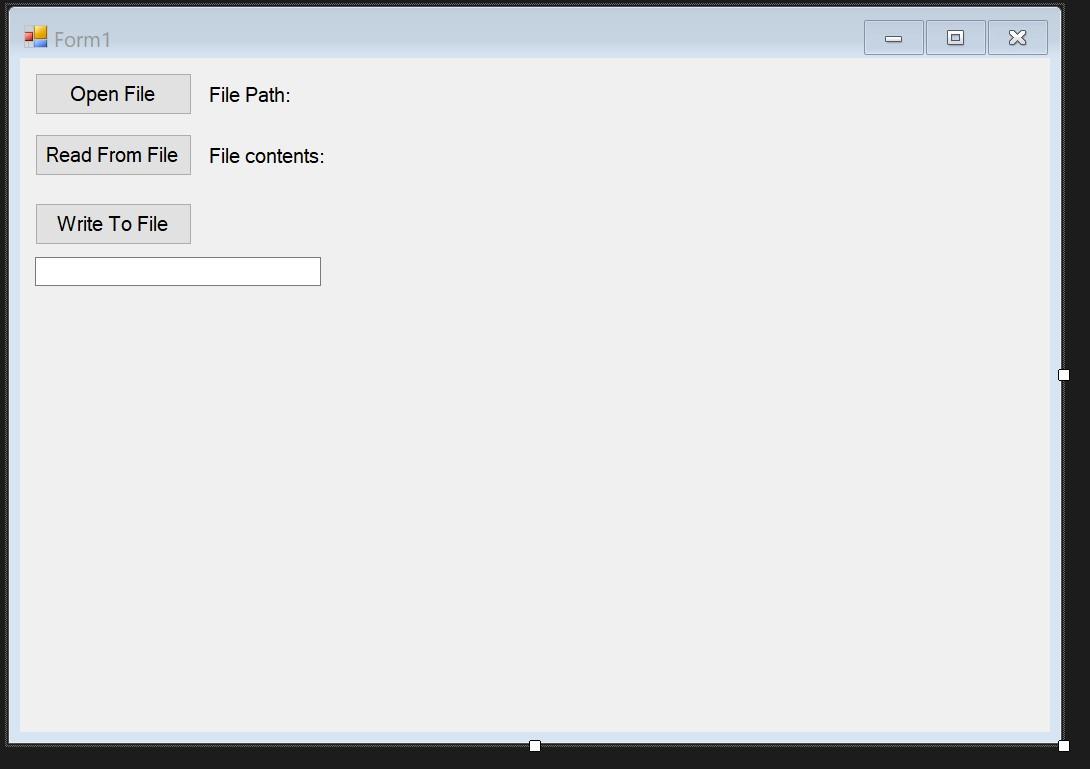
First, let’s create the layout.
Code:
using System;
using System.IO;
using System.Windows.Forms;

namespace WFAOpenFileDialog
{
    public partial class Form1 : Form
    {
        public Form1()
        {
            InitializeComponent();
        }

        string filePath = "";

        private void fileReadButton_Click(object sender, EventArgs e)
        {
            //Exceptions need to be handled. As if the file cannot be accesed our application will crash.
            try
            {
                //Initialize StramReader by passing it the path of the file.
                StreamReader sr = new StreamReader(filePath);

                //Read from the file and save the string to a variable.
                string text = sr.ReadToEnd();

                //Don't forget to close the StreamReader.
                sr.Close();

                //Display the file contents in a label.
                readLabel.Text = text;
            }
            catch (FileNotFoundException)
            {
                MessageBox.Show("No file with such name was found!");
            }
            catch (DirectoryNotFoundException)
            {
                MessageBox.Show("Directory doesnt exist!");
            }
            catch (Exception ex)
            {
                MessageBox.Show("Something went wrong!" + ex.Data);
            }
        }

        private void writeButton_Click(object sender, EventArgs e)
        {
            //Get the text to be written to file from the text box.
            string text = writeTextBox.Text;

            //Exceptions need to be handled as if the file cannot be accesed our application will crash.
            try
            {
                //Initialize StramWriter by passing it the path of the file.
                StreamWriter sw = File.CreateText(filePath);

                //Write to the file.
                sw.Write(text); //You could use the WriteLine(); method if you want to write to the file line by line.

                //Don't forget to close the StreamReader.
                sw.Close();
            }
            catch (Exception ex)
            {
                MessageBox.Show("Something went wrong!" + ex.Data);
            }
        }

        private void openFileButton_Click(object sender, EventArgs e)
        {
            //When the open file button is pressed the open file dialog will open.
            //After the user selects the file we we will get the file name from the open file dialog and save it to a variable.
            if (openFileDialog1.ShowDialog() == DialogResult.OK)
            {
                filePath = openFileDialog1.FileName;
            }

            //Display path in the label.
            filePathLabel.Text = filePath;
        }
    }
}
Resulting output:
About
In this code snippet, we will see how to write and read files in C#.
In this example, I will use a console application. If you want to know how to open a file dialog and select/create a file in a WFA application see this post.
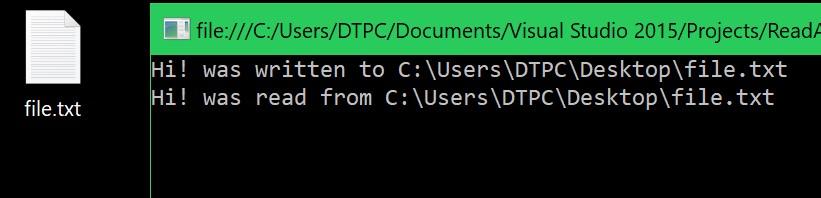
First, we will create a file(if it doesn’t already exist) using FileStream. Then we will write some text to the file using the StreamWriter class. Then we’ll use the StreamReader class to read from the file. All these operations need to performed inside a try catch block to prevent the application from crashing if an exception occurs.
Note: You don’t necessarily have to do exactly what was done here to read or write files. Instead of creating a file with FilesStream you could just pass its instance to StreamWriter. You can use the using keywod to simplify your code and avoid using the try catch block …
Let’s have a look at the code below to see how to read and write files.
Code:
using System;
using System.IO;

namespace ReadAndWriteFile
{
    class Program
    {
        static void Main(string[] args)
        {
            writeToFile();
            readFromFile();

            Console.ReadLine();
        }

        public static void writeToFile()
        {
            //Exceptions need to be handled. Otherwise if the file cannot be accesed our application will crash.
            try
            {
                //Path of the file to be read.
                string path = "C:\\Users\\DTPC\\Desktop\\file.txt";

                //Check if the file exist ...
                if (!File.Exists(path))
                {
                    //... if not create it.
                    FileStream fs = new FileStream(path, FileMode.OpenOrCreate, FileAccess.Write);
                    fs.Dispose();
                }

                //Initialize StramWriter by passing it the path of the file.
                StreamWriter sw = File.CreateText(path);

                //Text to be written.
                string text = "Hi!";

                //Write to the file.
                sw.Write(text); //You could use the WriteLine(); method if you want to write to the file line by line.

                Console.WriteLine(text + " was written to " + path);

                //Don't forget to close the StreamReader.
                sw.Close();
            }
            catch (FileNotFoundException)
            {
                Console.WriteLine("No file with such name was found!");
            }
            catch (DirectoryNotFoundException)
            {
                Console.WriteLine("Directory doesn't exist!");
            }
            catch (Exception ex)
            {
                Console.WriteLine("Something went wrong!" + ex.Data);
            }
        }

        public static void readFromFile()
        {
            //Exceptions need to be handled. Otherwise if the file cannot be accesed our application will crash.
            try
            {
                //Path of the file to be read.
                string path = "C:\\Users\\DTPC\\Desktop\\file.txt";

                //Initialize StramReader by passing it the path of the file.
                StreamReader sr = new StreamReader(path);

                //Read from the file and save the string to a variable.
                string message = sr.ReadToEnd(); //You could use the ReadLine() method inside a loop if you want to read the file line by line.

                //Don't forget to close the StreamReader.
                sr.Close();

                //Write out the file contents to the console.
                Console.WriteLine(message + " was read from " + path);
            }
            catch (FileNotFoundException)
            {
               Console.WriteLine("No file with such name was found!");
            }
            catch (DirectoryNotFoundException)
            {
                Console.WriteLine("Directory doesn't exist!");
            }
            catch (Exception ex)
            {
                Console.WriteLine("Something went wrong!" + ex.Data);
            }
        }
    }
}
Resulting output: