Home
About
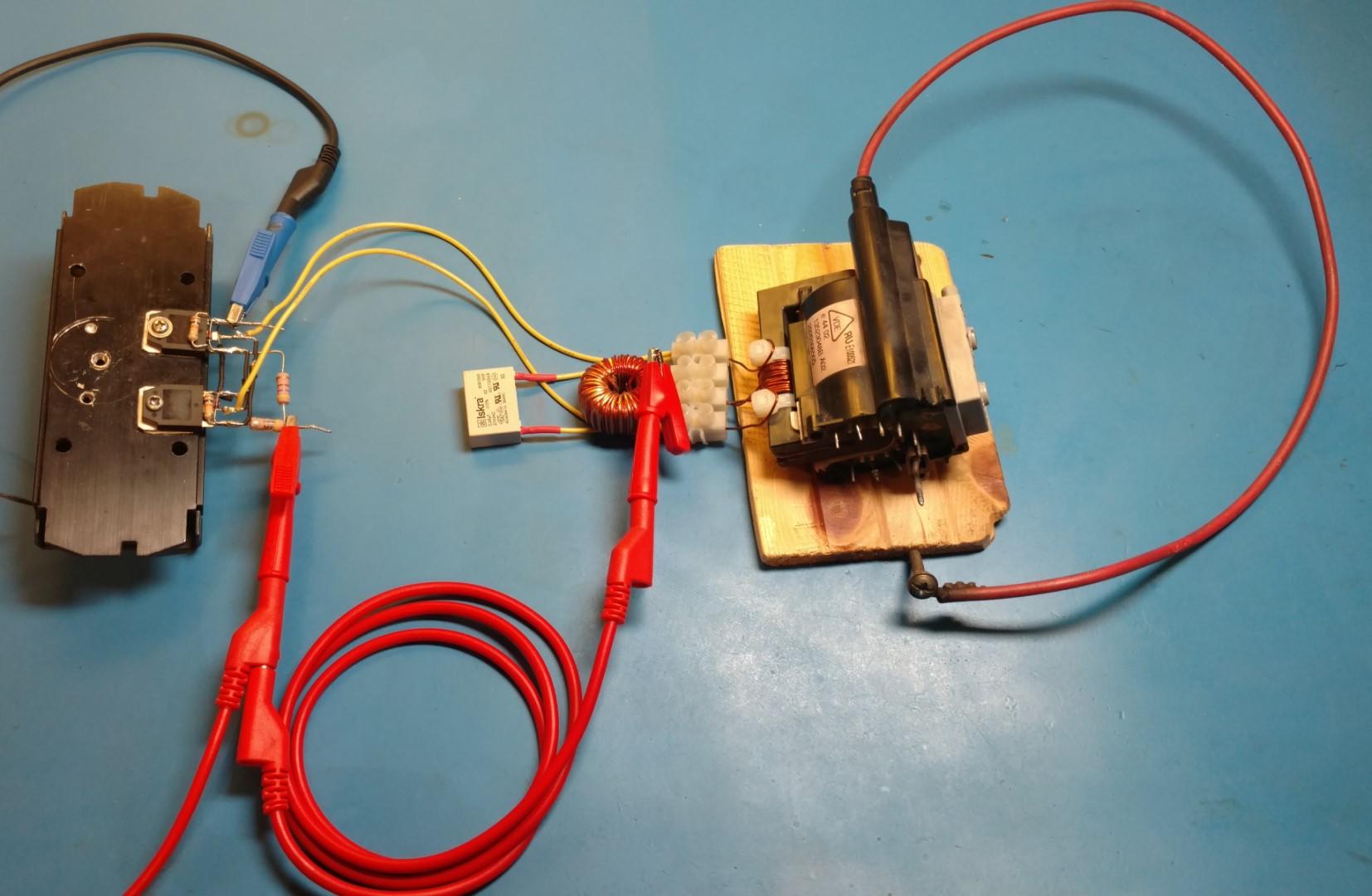
In this post, I will show my DIY ZVS flyback driver high voltage generator. The ZVS driver can actually also be used to make an induction heater. But in this case, I will use it to drive a flyback transformer to make high voltage. In the video below you can see a demonstration of the arcs produced by the transformer and a Jacob’s ladder.
WARNING: This circuit has the potential to kill you. Make sure you know what you are doing and know how to handle high voltage before attempting to recreate this circuit.
Hardware used:
- #adAmazon LinkZVS Driver
- #adAmazon LinkFlyback Transformer + ZVS Driver
Making It
I made the circuit according to this schematic that is quite popular and often found on the internet.
The components used are all listed in the schematic above. I got the flyback transformer from an old TV. And the big inductor I took out of an old computer PSU. The rest of the components you can get cheaply from eBay/Aliexpress… Or you can just buy the preassembled driver boards(see links above) if you don’t feel like spending the time and effort to make your own circuit.
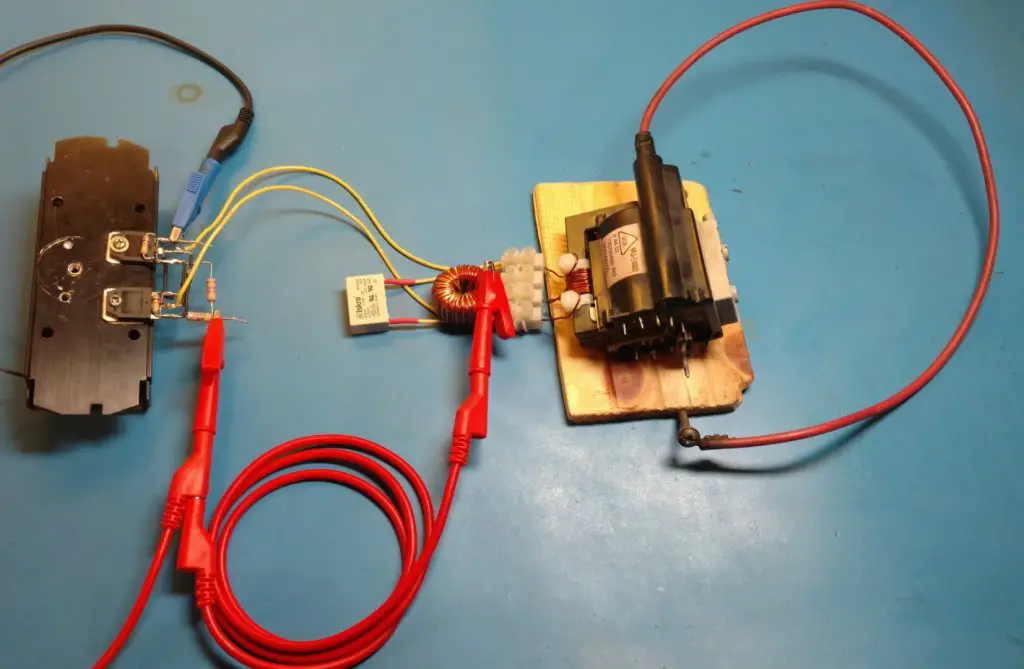
Here it is in action.
About
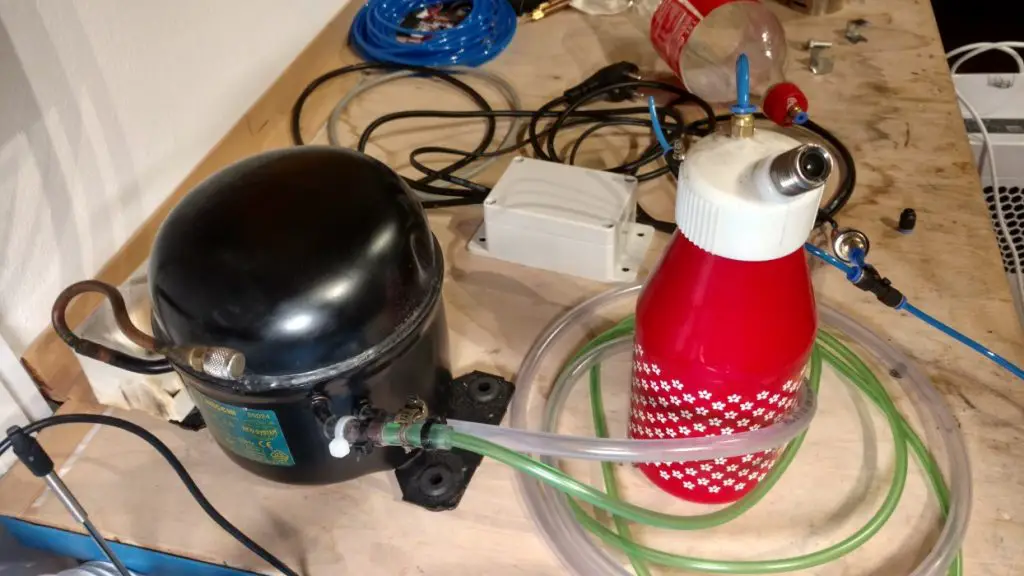
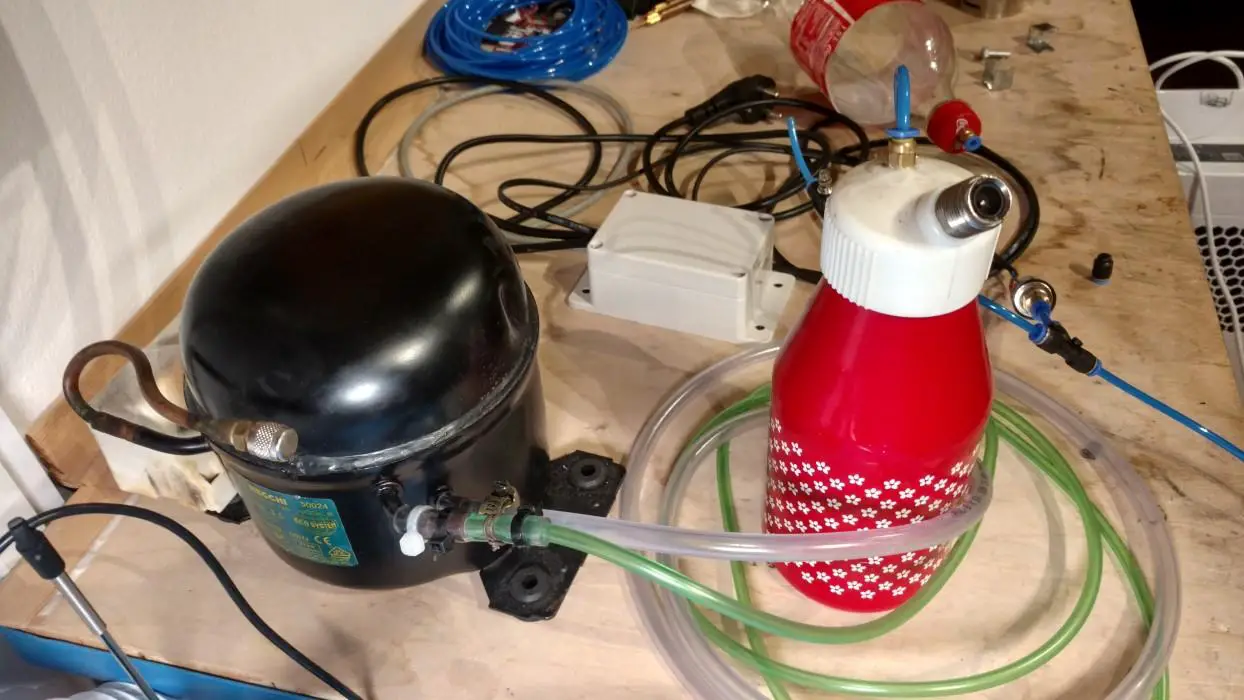
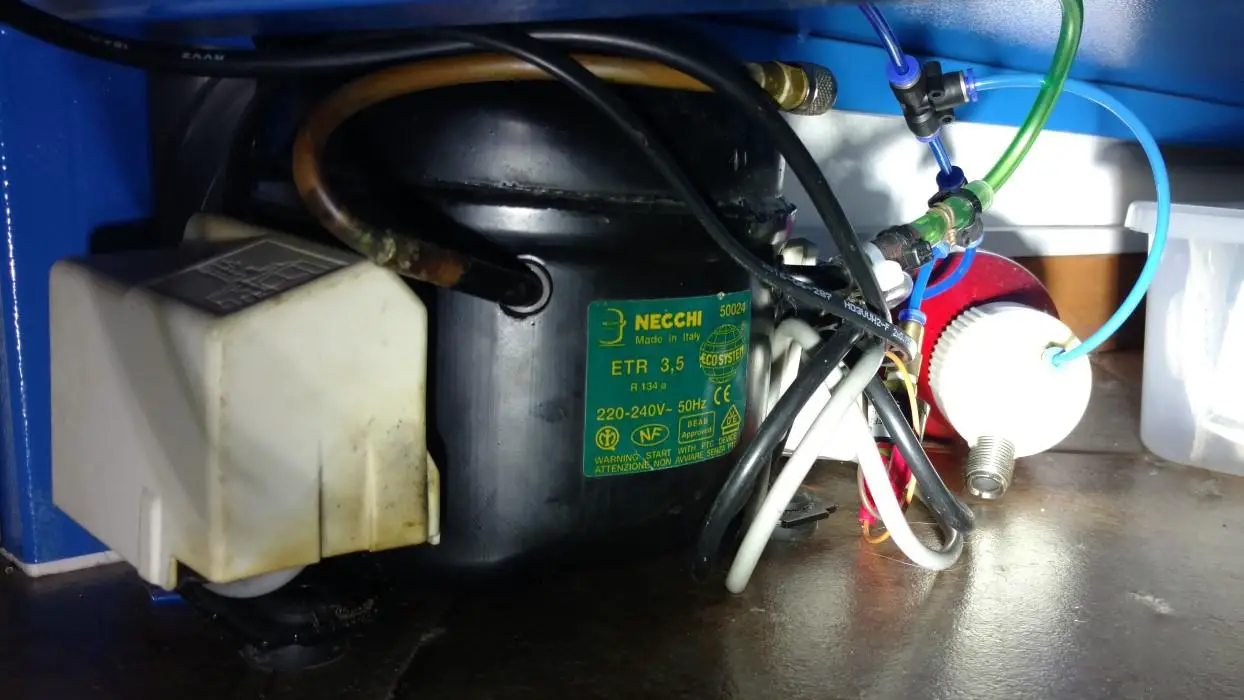
In this post, I will show my DIY quiet air compressor. I took the compressor from an old fridge and used an old whipped cream dispenser as an air tank. The compressor is very quiet and can thus be kept indoors(under my table in fact). The air capacity isn’t the greatest but it’s good enough for my needs(doing some pneumatics experiments, solder dispenser, …). The air pressure, however, can easily get up to 8 bar(around 120 psi). In addition to compressed air, you also get a vacuum line. You could, for example, use that for making a vacuum chamber or a vacuum pick up tool.
Hardware used:
- #adAmazon LinkPneumatic Tube + Fittings + Splitters
- #adAmazon LinkAir Pressure Guage
- #adAmazon LinkAdapter Fitting
- #adAmazon LinkThreaded Fitting
- #adAmazon LinkStraight Through Fitting
- #adAmazon LinkT Splitter Fitting
- #adAmazon LinkPressure Valve
- #adAmazon LinkAir Valve
- #adAmazon LinkPlastic Project Box
- #adAmazon LinkAir Pressure Switch
- #adAmazon LinkFilter
- #adAmazon LinkAir Pressure Regulator
Making It
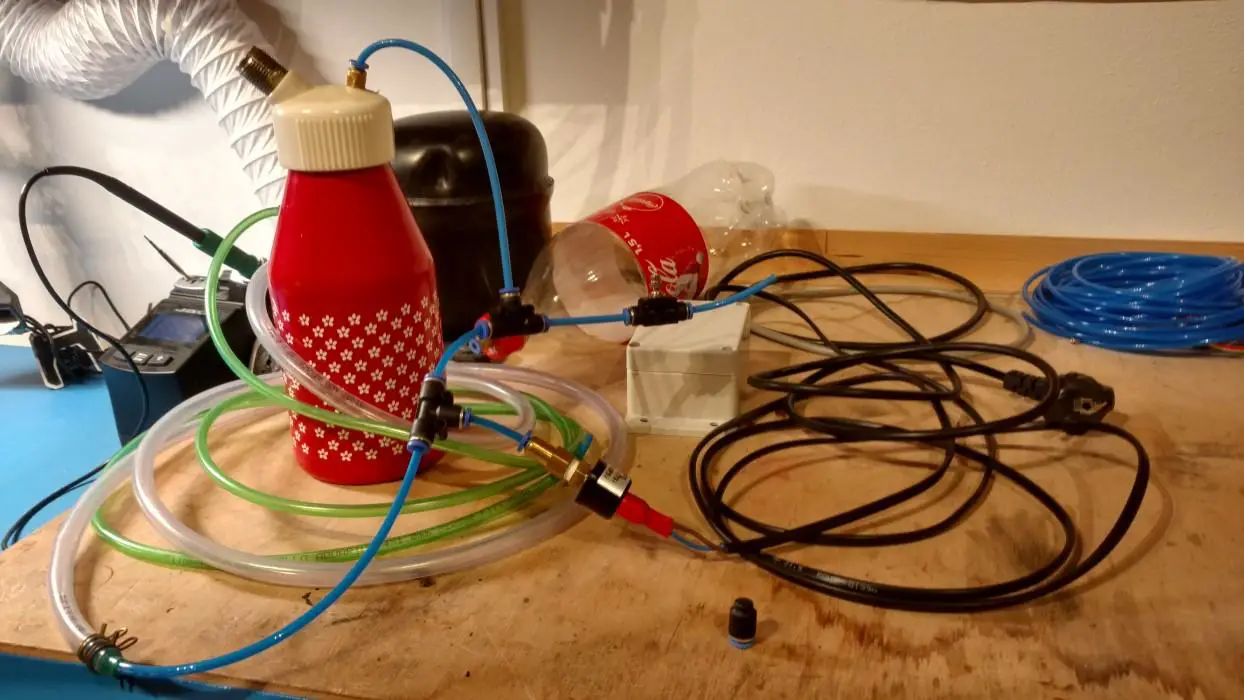
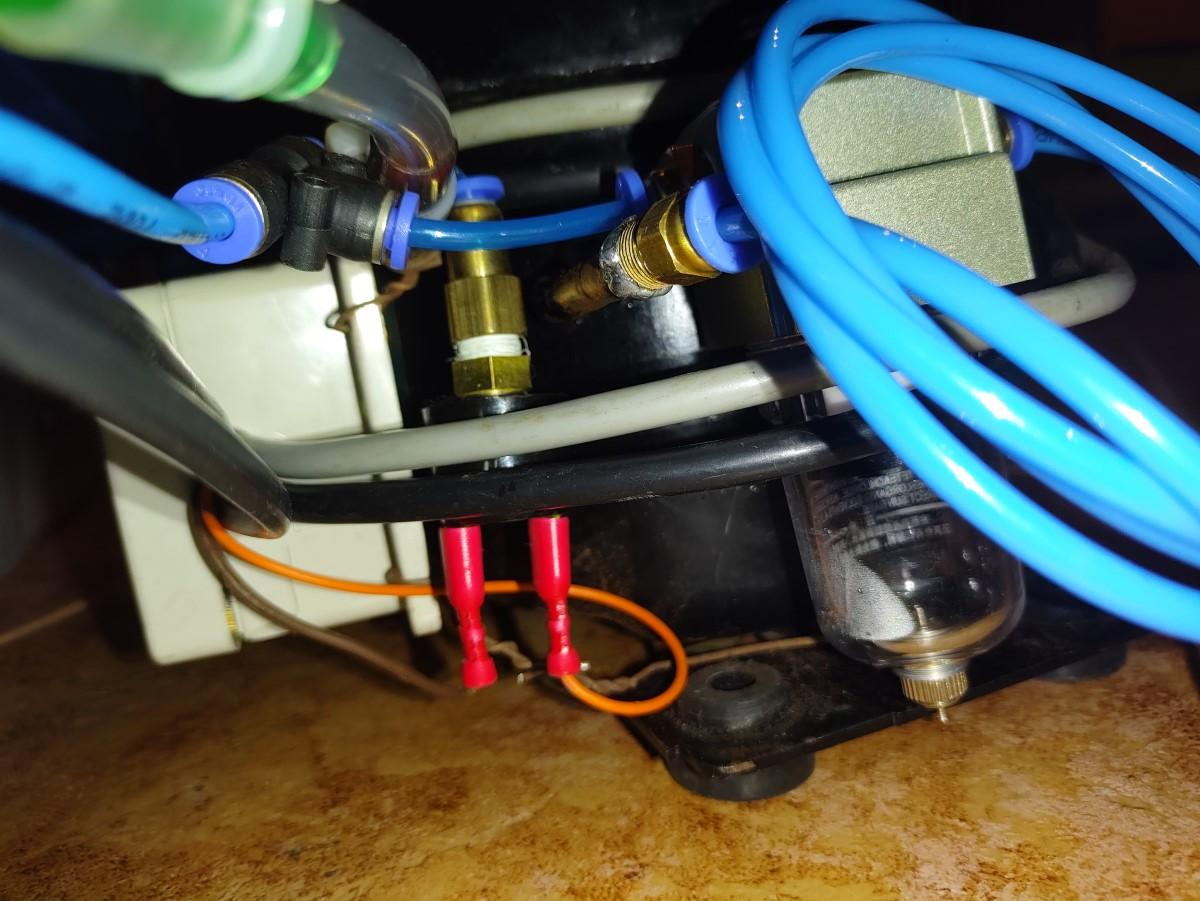
As far a the electrical wiring goes I connected a plug to the compressor put a regular switch and a pressure switch in series with the live wire. This way the compressor can be turned on/off manually and automatically if the air pressure reaches 8 bar.
For the air/vacuum I connected just some regular rubber hoses and attached them to the compressor with a combination of zip ties, hose clamps, and wire. Not the best or prettiest solution but it has been working so far. On the other end, I connected the hoses to a 4mm pneumatic polyurethane tube that can be used with push in pneumatic fittings. This way making good airtight connections is quick and easy.
I hid away the compressor and air tank under the table.
Later on, I added a water/oil filter and coiled some of the tubing. This gives the air time to cool down after it gets compressed and for any moisture to condense so it can get caught by the filter.
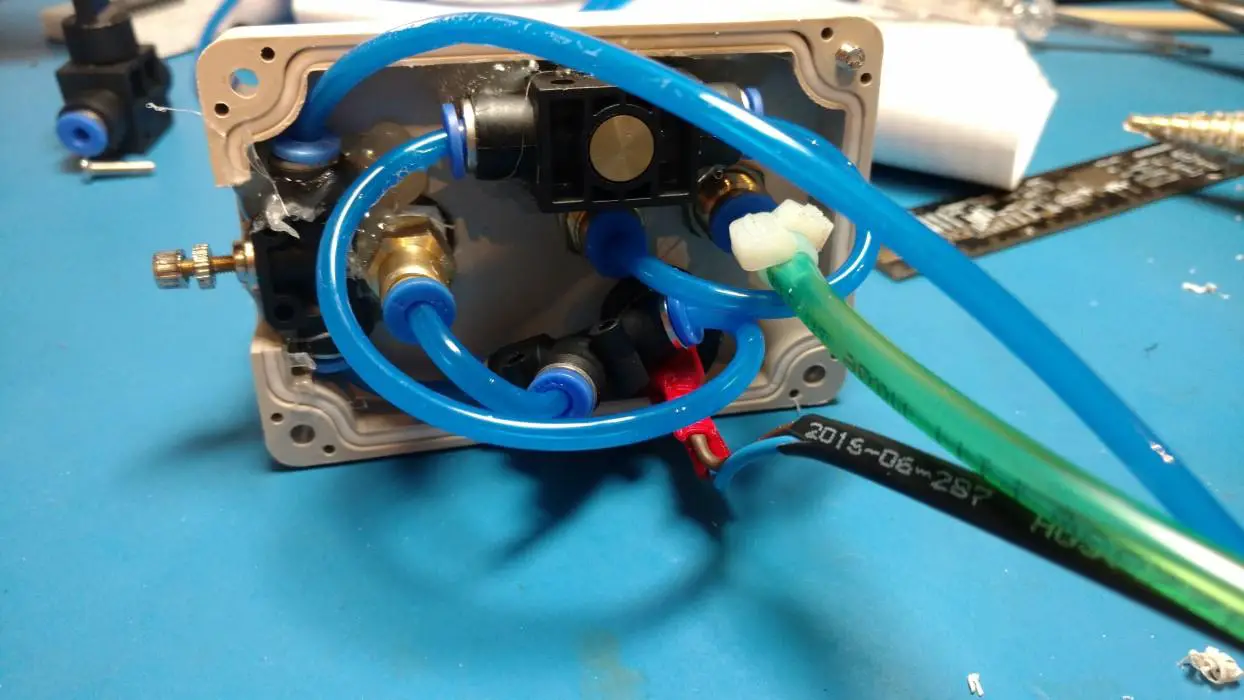
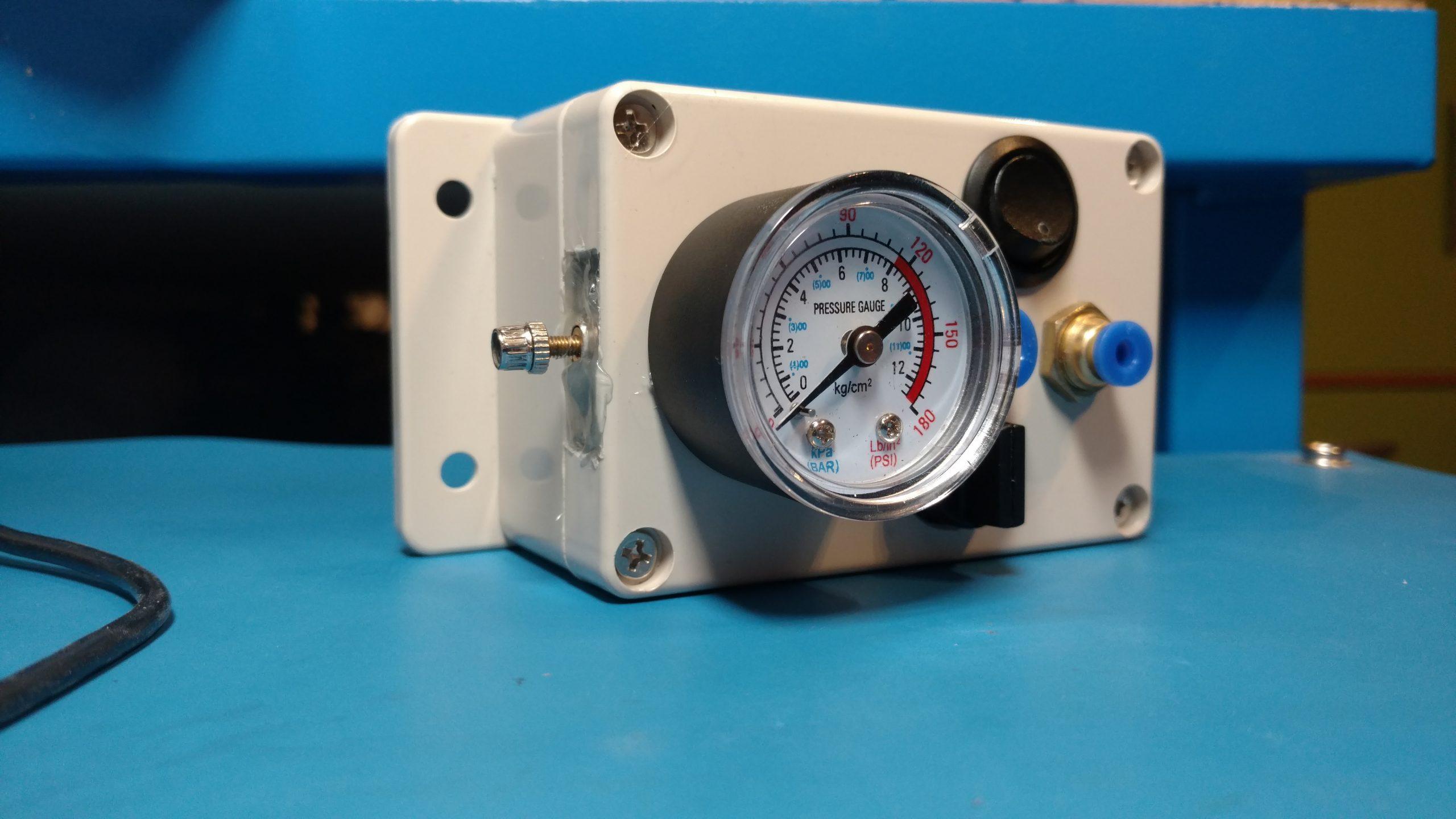
To make the interface I used a plastic project box where I put all the connections and controls.
Testing
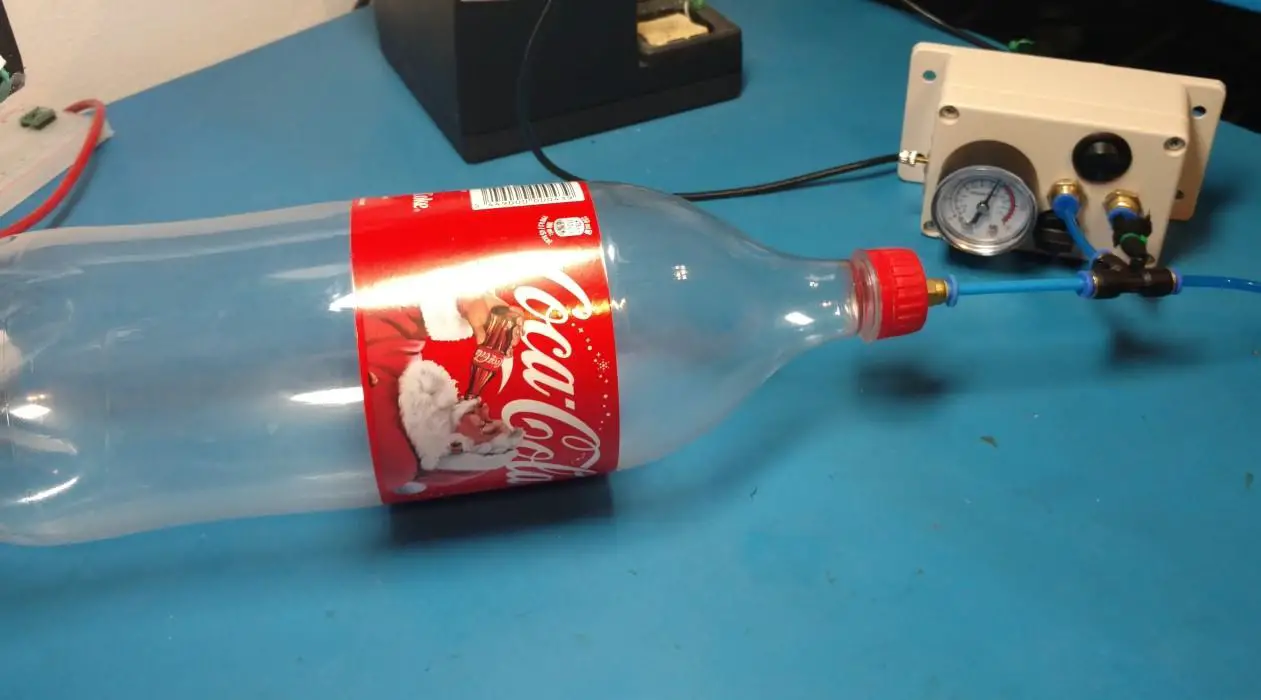
Here I tested the compressor by filling a coke bottle with compressed air. I was actually thinking I could use it as an air tank as soda bottles are made to withstand very high pressures. But as you can see in the picture the bottle started to get deformed after a lot of pressurization/depressurization cycles. So I decide to go the safer route and use a metal air tank(whip cream maker) that was designed for repeated pressurizations.
About
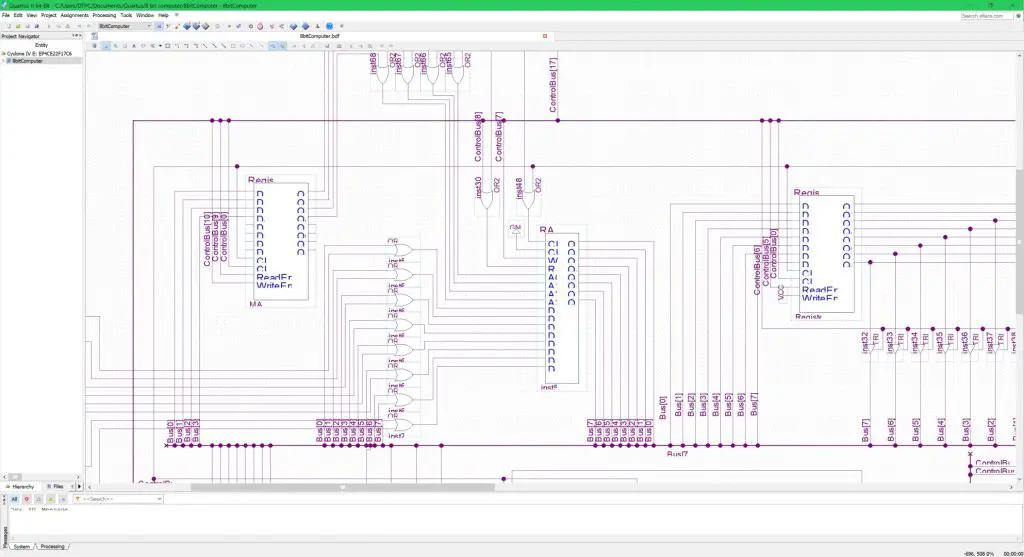
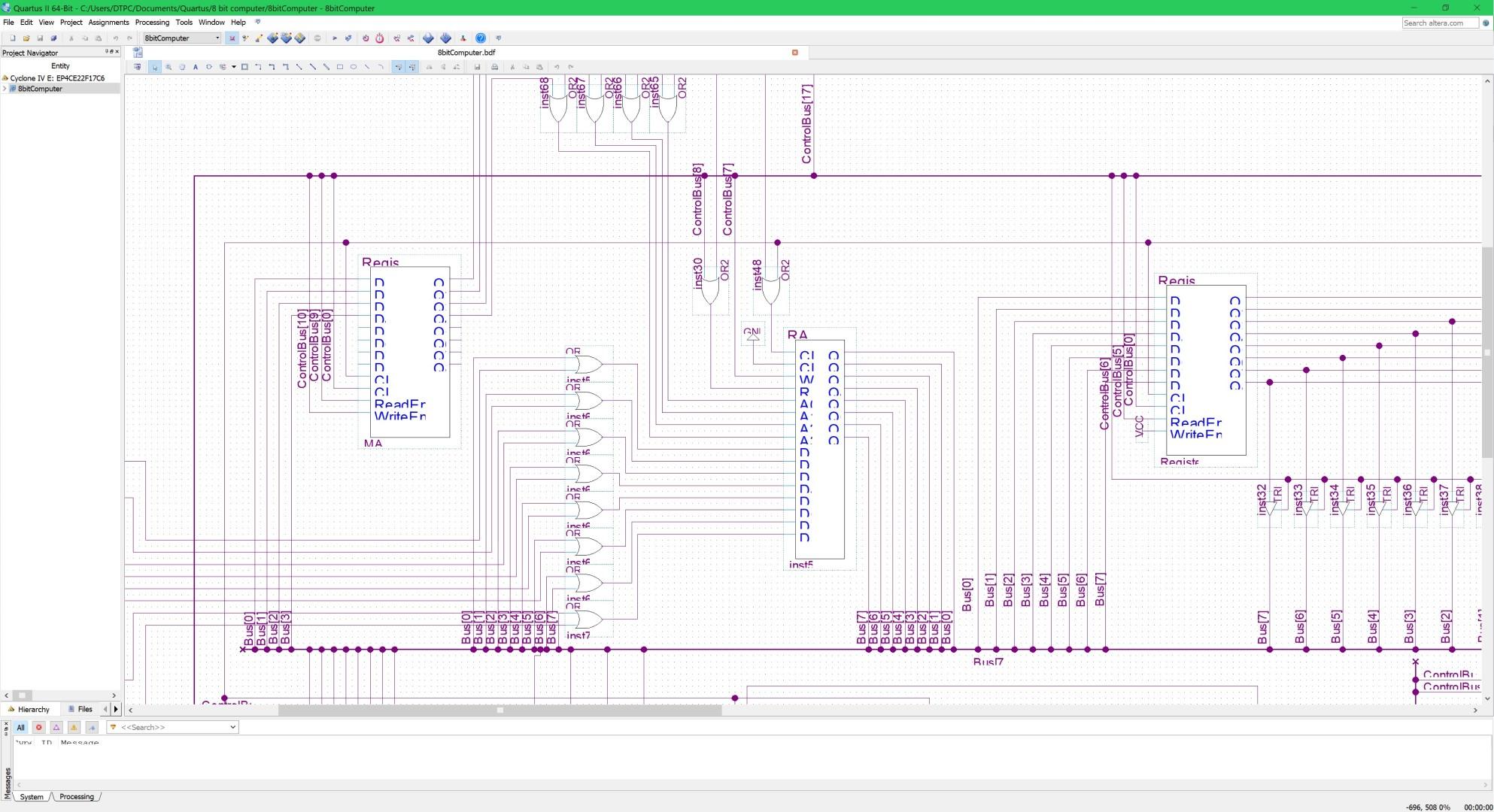
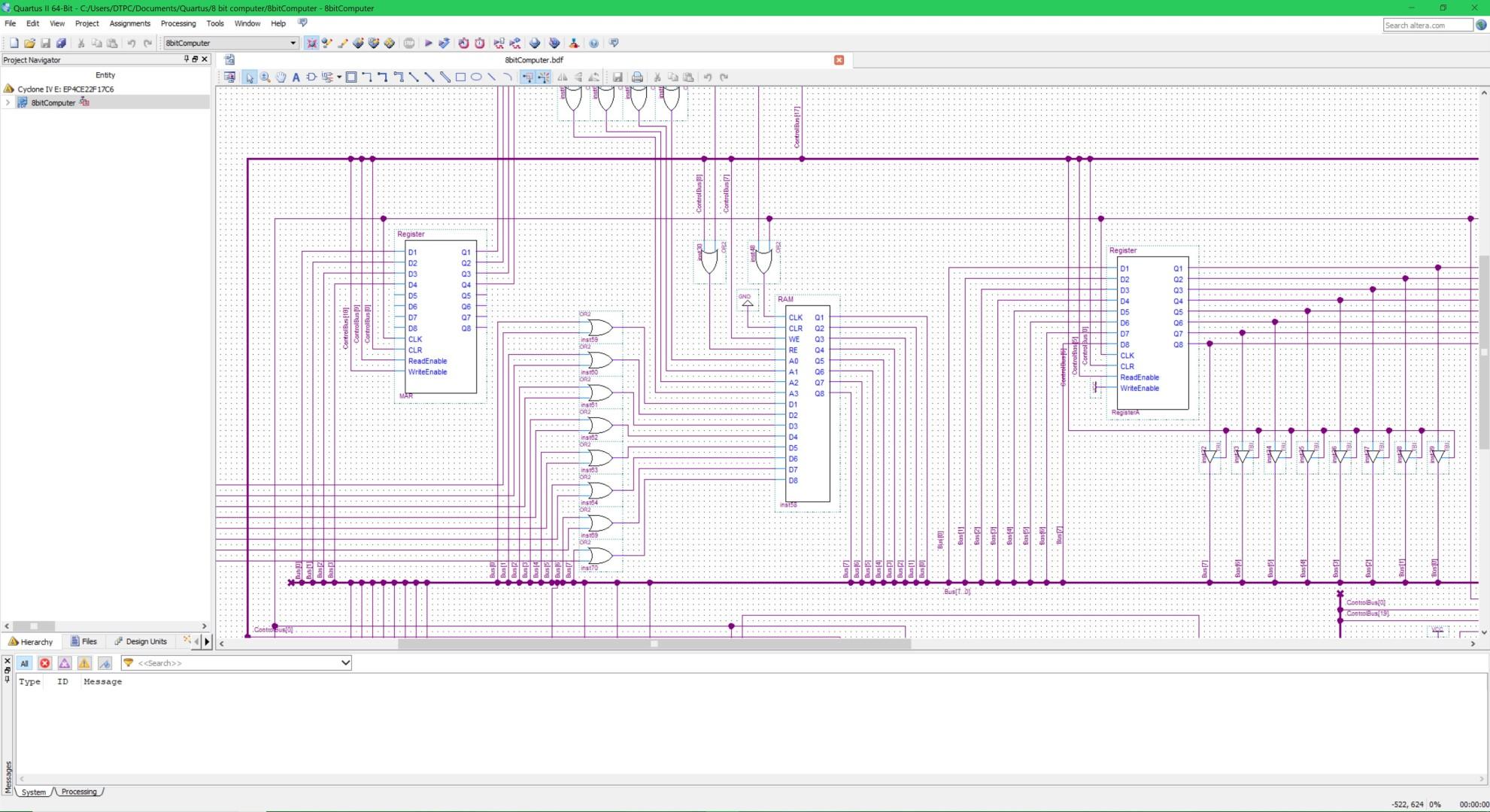
In this post, I will show you how to fix the scaling issues in Quartus if you are using a higher resolution screen. This also works for any other programs affected by the issue of not properly scaling the UI for the high resolution. As you can see in the image above the scaling is all messed up. Here’s how to fix it.
How to:
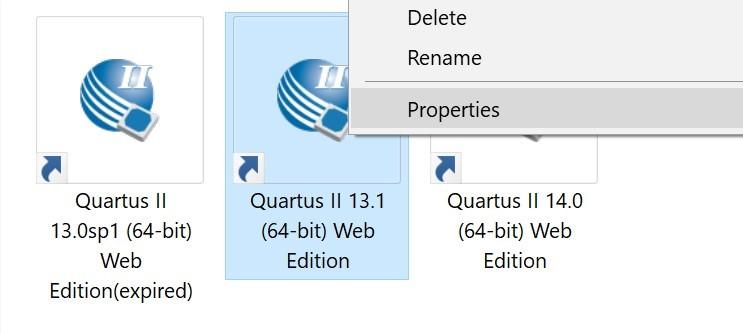
Right-click on the affected program and select properties.
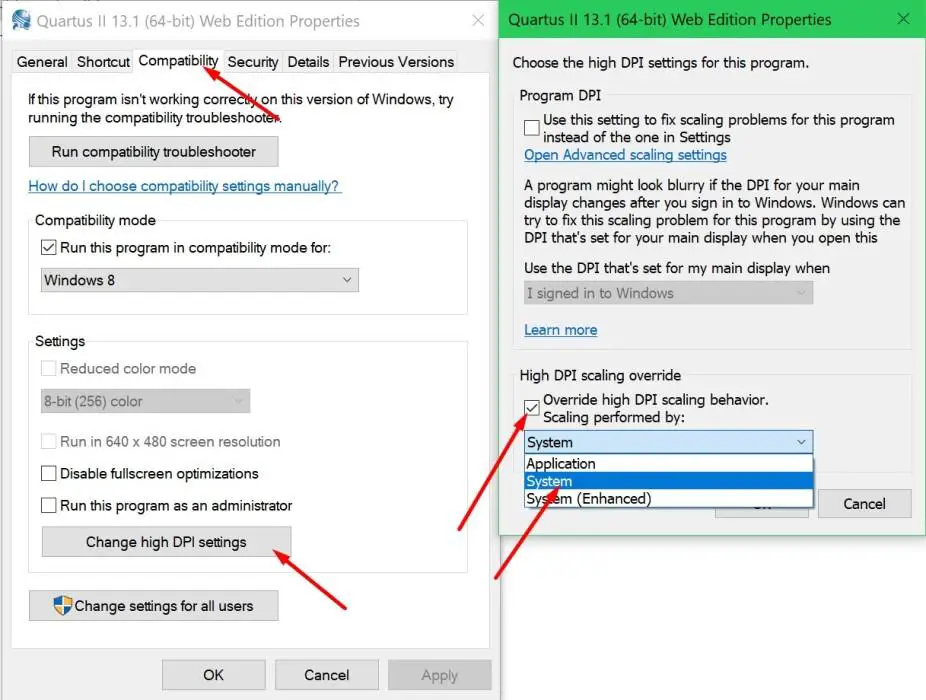
- In the properties window select the compatibility tab.
- Under settings click the Change high DPI settings button. A new window will open up.
- Look for the High DPI scaling override section in this window.
- Check the checkbox for Override high DPI scaling behavior and select System.
Now just re-open your application and your scaling issues should be gone.
About
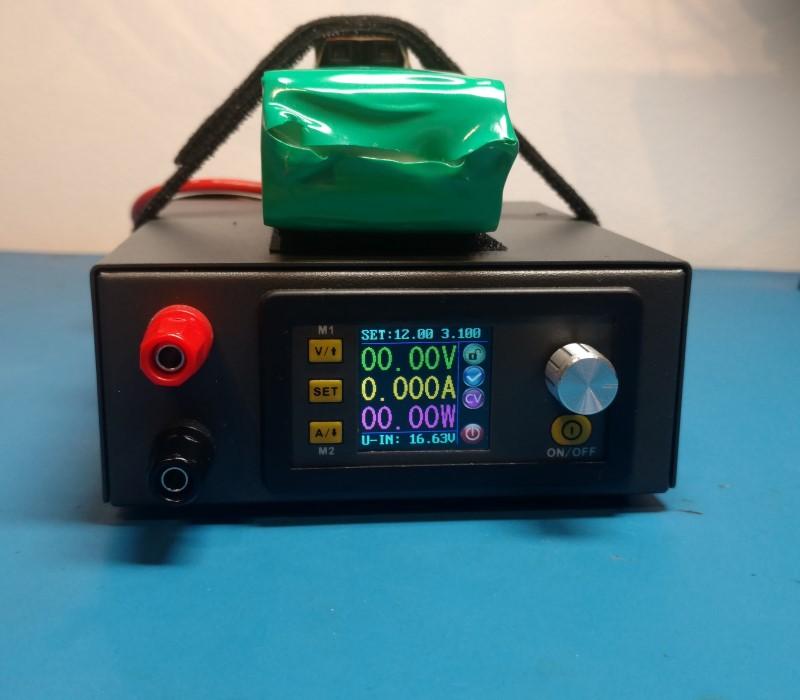
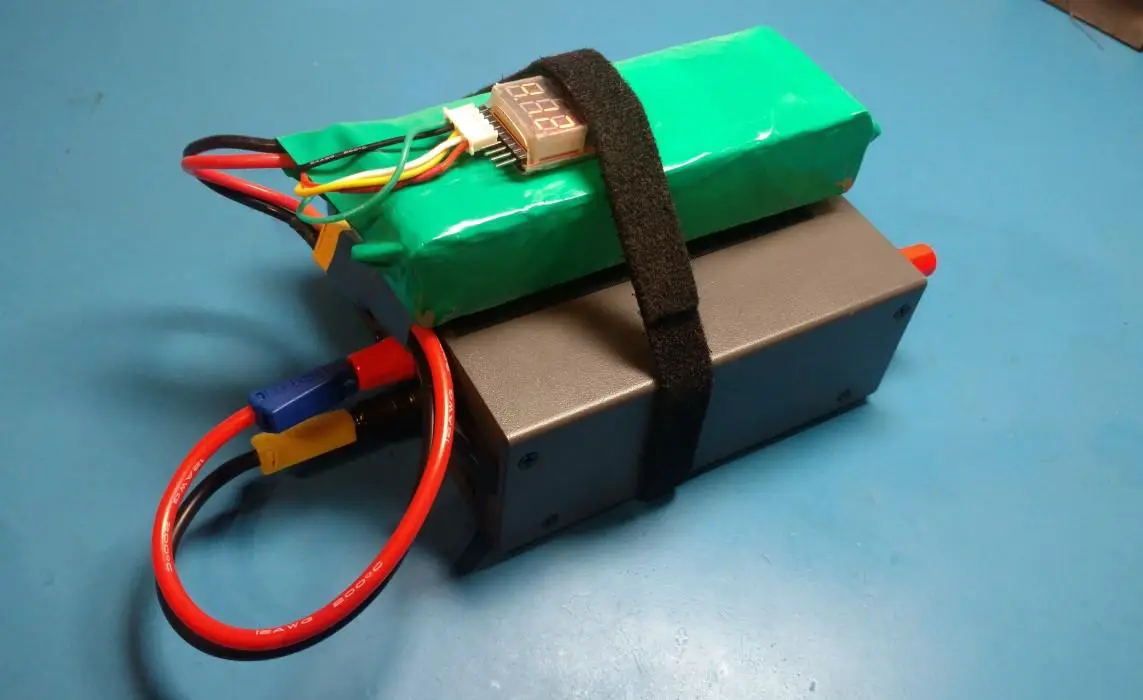
In this post, I will show my DIY portable power supply. The PSU uses the DPS3003 module. This module is rated for voltages from 0-32V and currents from 0-3A. You can get other models with higher or lower voltage/current ratings. The input voltage, however, must be in the range of 6-40V and your maximum output voltage is limited to your input voltage. In my case, the battery provides around 16V to the input so the output voltage can’t go higher than that.
Hardware used:
- #adAmazon LinkPower supply module
- #adAmazon LinkPower supply module case
Making It
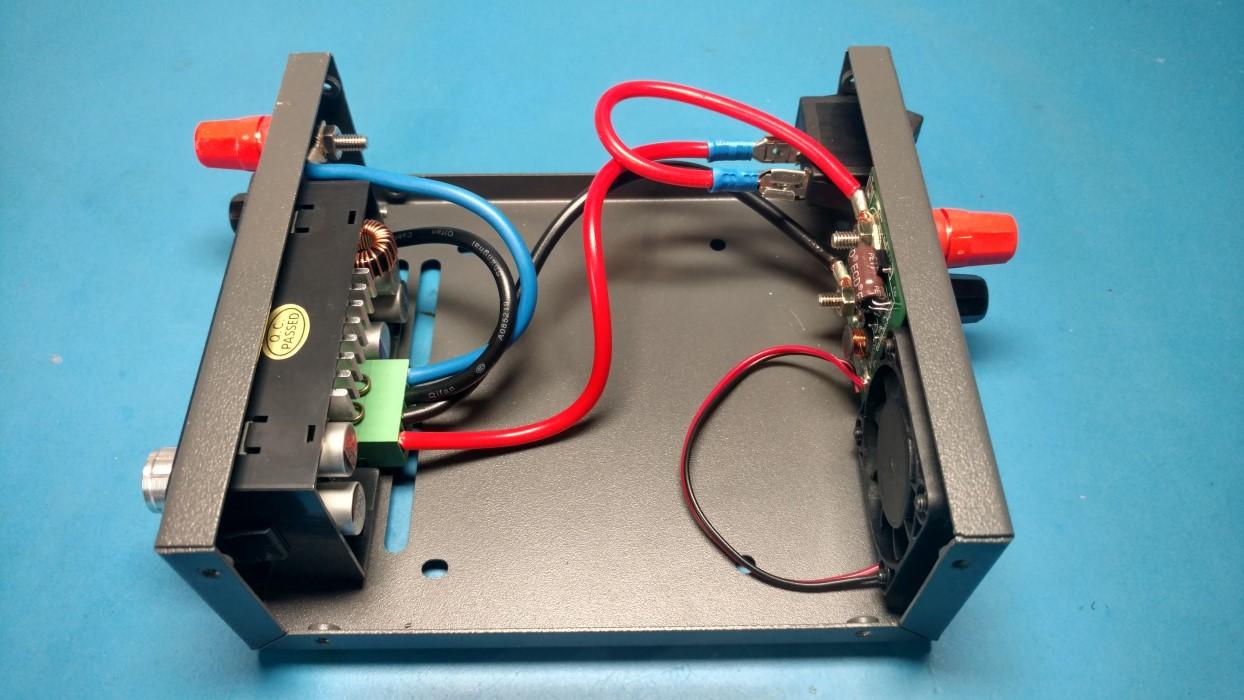
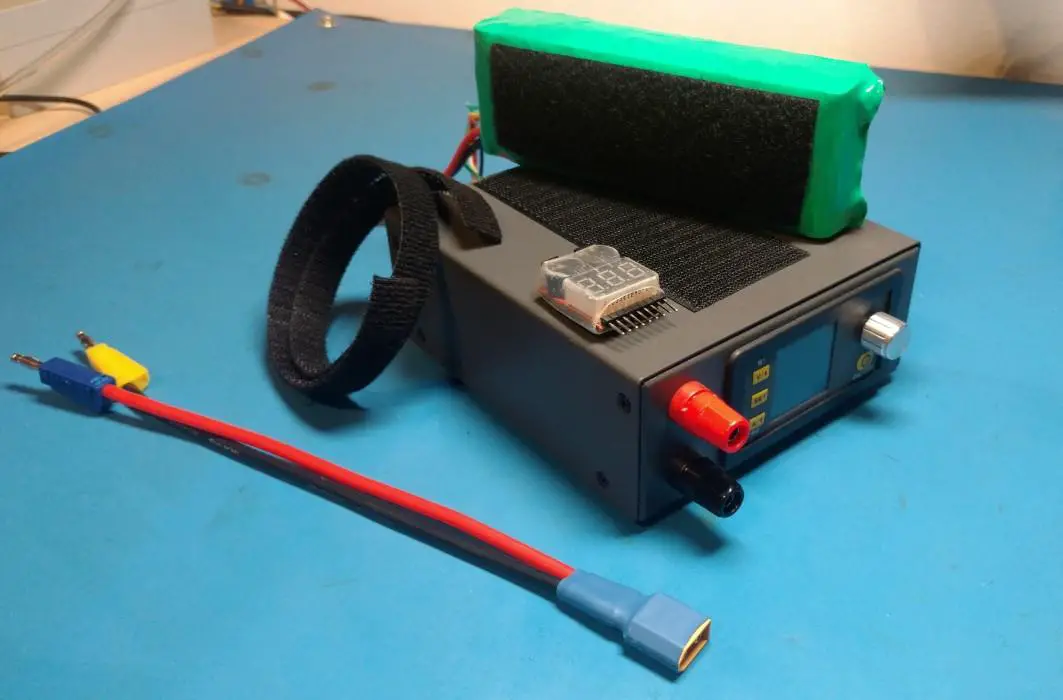
Assembling the power supply is pretty straight forward. Screw the terminals into the case. Connect the positive wires to the positive terminals and the negative wires to negative terminals. Put the cover onto the case and it’s all done. To make it portable I took a quadcopter S4 LiPo battery and attached it to the PSU using some velcro. To connect the battery to the power supply I had to make an XT60 to banana plug adapter cable.
The DPS3003 DIY PSU all assembled.
Testing
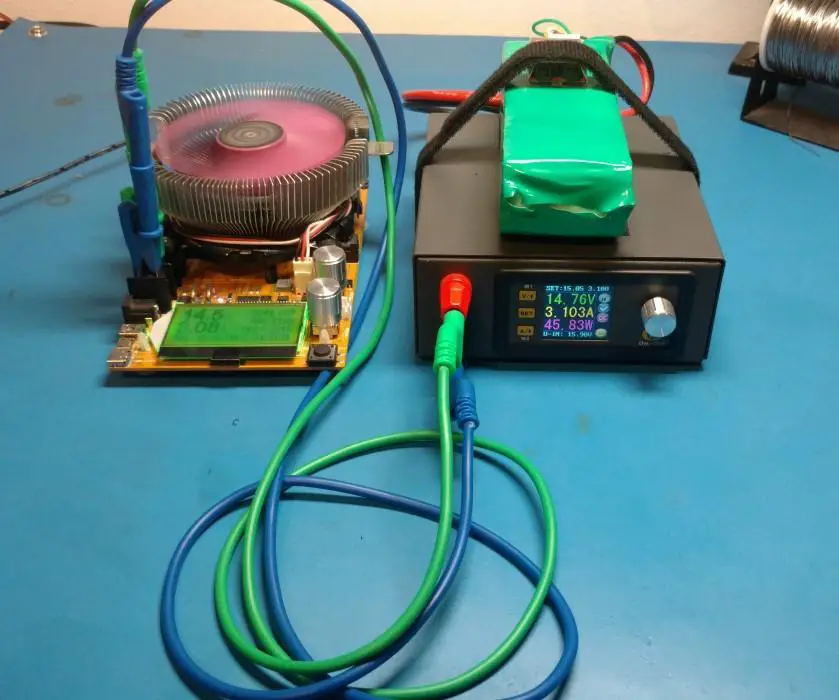
Testing the maximum load using a DC electronic load.
As you can see the PSU performs to the specifications. 🙂 I also used an oscilloscope to look for any noise on the output. And well … this power supply is essentially a DC to DC converter so there was some noise on the output. It wasn’t that great or horrible. Just your average SMPS noise in the order of a few hundred millivolts. It’s more than good enough for most of the things I intend to use it for.
About
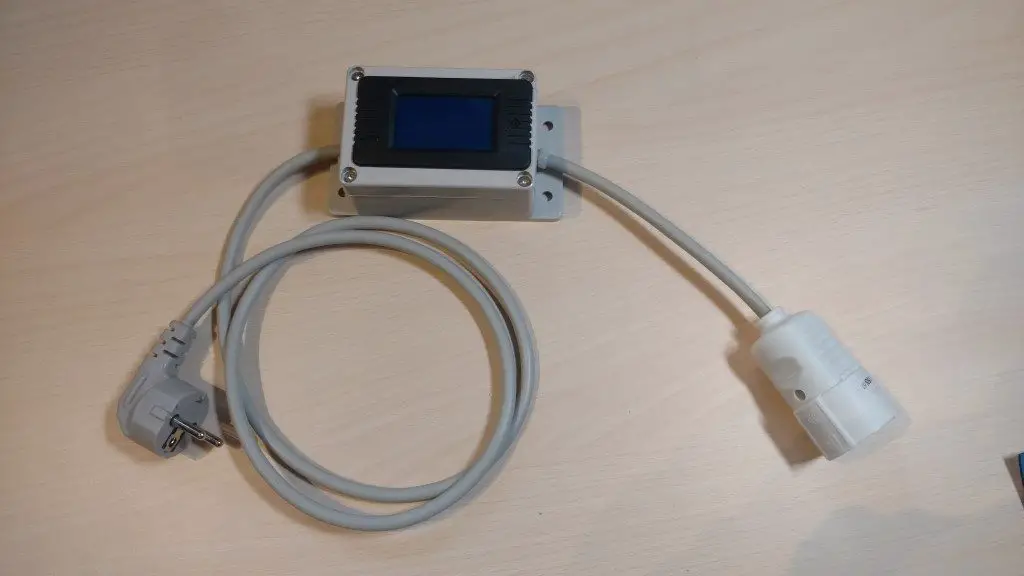
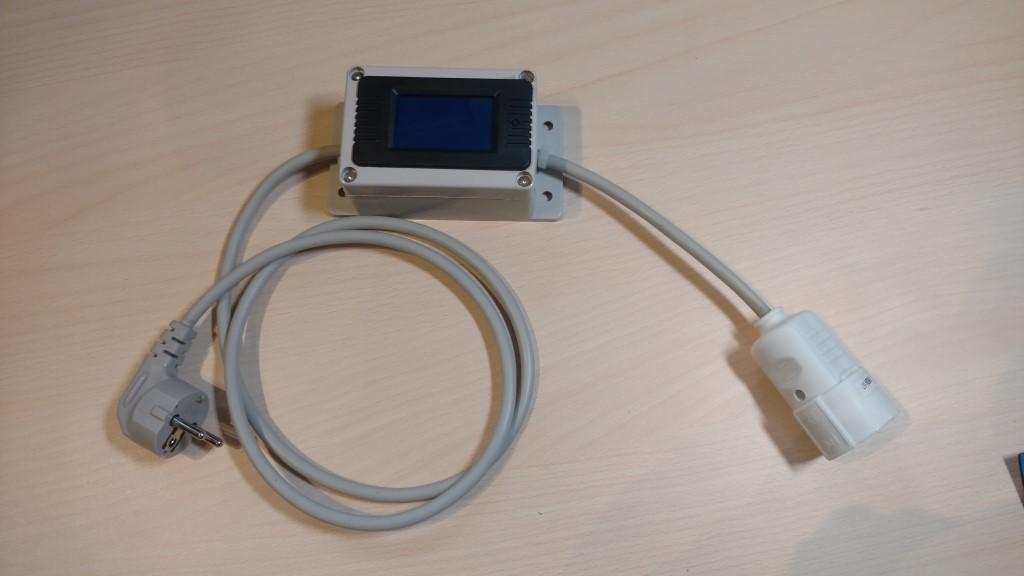
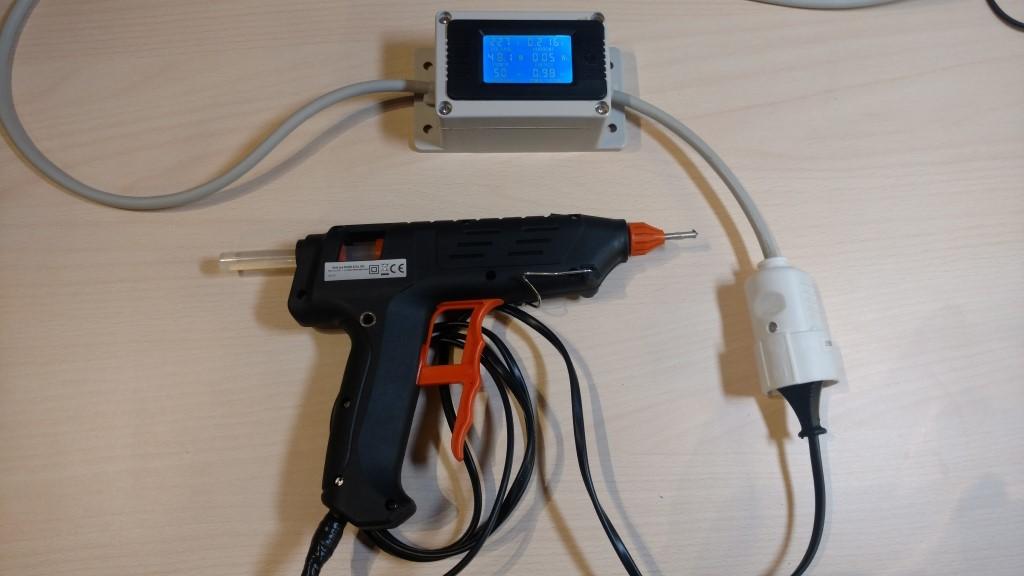
In this post, I will show my DIY power/power factor meter. The module itself was bought(of course) I just put it in an enclosure and added some cables to make measurements easier. This way I have a handy and cheap tool for measuring the power and power factor of any device that I connect to it. This thing is no professional instrument with great accuracy but it’s good enough for doing some basic measurements.
Hardware used:
- #adAmazon LinkPower meter module
- #adAmazon LinkPlastic project box
Making It:
The device is very easy to make.
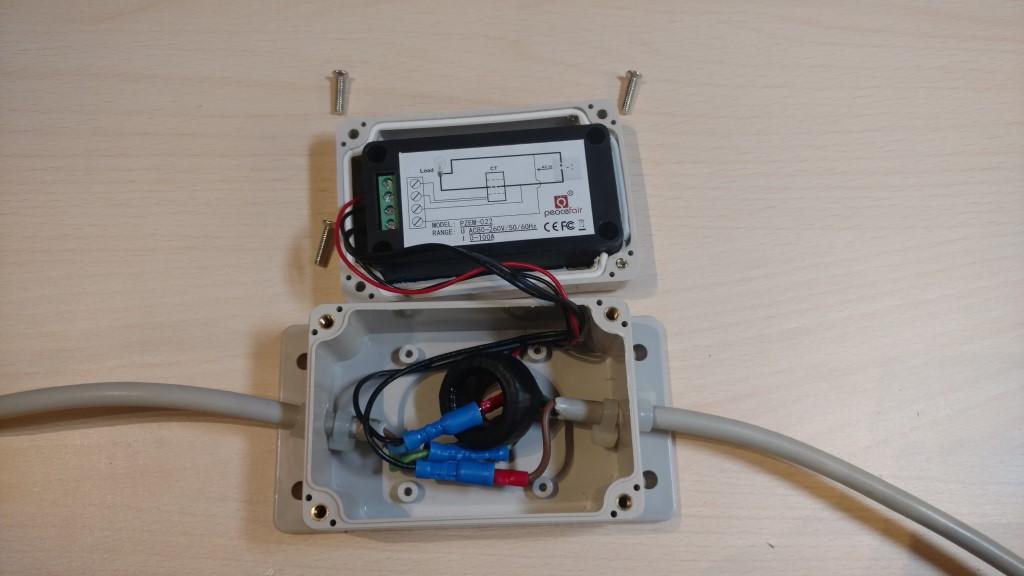
First I drilled two holes for the cables and cut out the top of the project box to the size required for the display.
Next, I inserted the cables into the box, crimped some connectors on the wires and connected them according to the schematic on the back of the power meter module. Zip ties were put on both sides of the cables to prevent them from sliding in and out.
Finally, I assembled the box, pressed in the power meter module and put a socket on to the end of the output cable.
Using It:
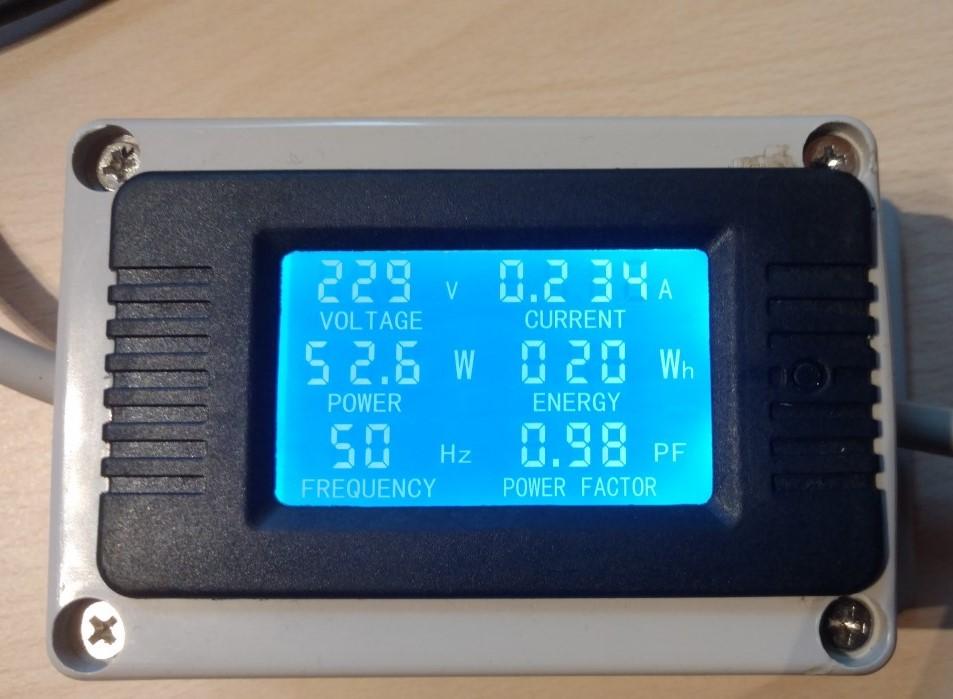
Just plug in the power meter and connect your load. The display should show the voltage, current, frequency, power factor, current power and power used so far.
About
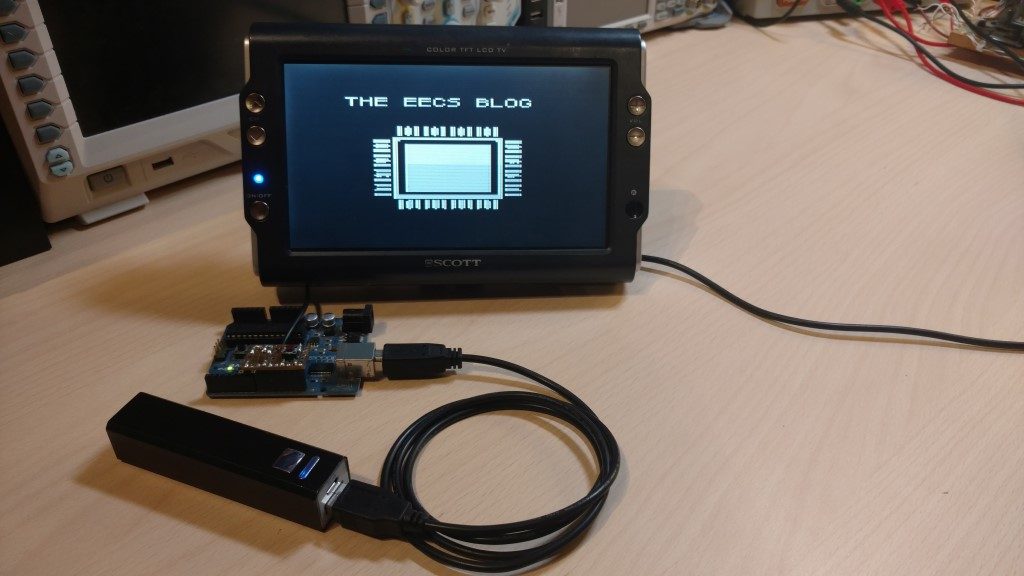
In this tutorial, you will learn how to output video from an Arduino and display it on a TV. Here we will specifically, see how to output an image. If you would like to know how to make the adapter or know more about the other functions available(outputting text, shapes, pixels) in the TVout library see this post.
Hardware used:
- #adAmazon LinkArduino
This tutorial is an extension of this original post I made about the TVout library. See the original post to see how to connect/make the circuit to connect the Arduino to the TV RCA input.
Software
This is the main code. It is pretty straight forward and self-explanatory(else read the code comments). However, you will first have to install the TVout library. You can do that by using the Arduino library manager. If you don’t exactly know how to install a library see the first part of this tutorial.
#include <TVout.h>
#include <fontALL.h>
//Include the image.
#include "myImage.h"
TVout TV;
void setup()
{
//Setup display.
TV.begin(PAL,120,96);
//Select font.
TV.select_font(font6x8);
}
void loop()
{
//Clear screen at the beginning of the loop.
TV.clear_screen();
//Set curosr position. (x,y)
TV.set_cursor(15, 10);
//Print text.
TV.println("THE EECS BLOG");
//Add the bitmap image. (x,y,image)
TV.bitmap(25, 30, myImage);
TV.delay(60);
}
Next, we need to create a c++ header file. Put in the code below and call it myImage.h. Save this file inside the project directory.
#include <avr/pgmspace.h> #ifndef MYIMAGE_H #define MYIMAGE_H extern const unsigned char myImage[]; #endif
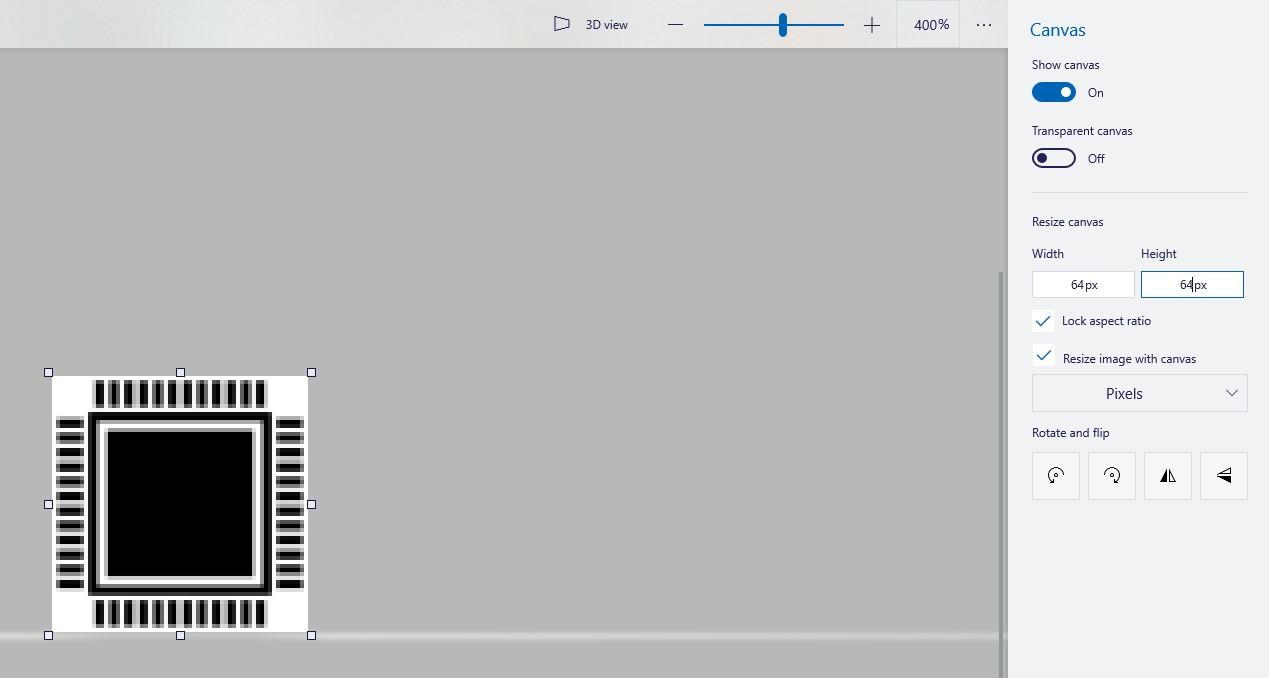
Now we need to resize our image(64x64px). You can do this good old MS paint.
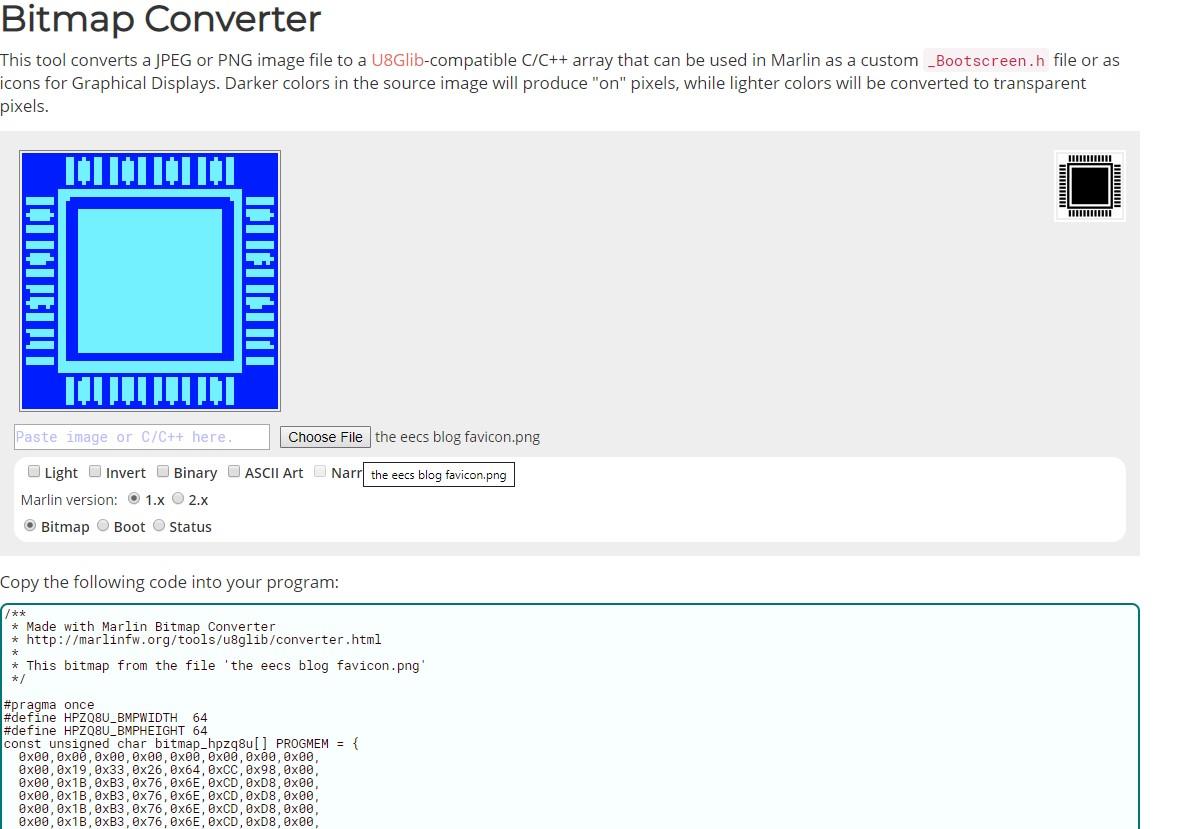
Next, we have to convert our image to a bitmap. We can use this website to do this.
Lastly, we need to make the file that is going to contain the image. Name the file myImage.cpp and save it into the project directory. In this file, we will fill our image “container” with the data(bitmap) that makes up the image.
Now just copy the hexadecimal values in the array and paste them in the array below. Make sure to put the resolution “64, 64, //resolution” before the data.
#include "myImage.h"
PROGMEM const unsigned char myImage[] = {
64, 64, //resolution
0x00,0x00,0x00,0x00,0x00,0x00,0x00,0x00,
0x00,0x19,0x33,0x26,0x64,0xCC,0x98,0x00,
0x00,0x1B,0xB3,0x76,0x6E,0xCD,0xD8,0x00,
0x00,0x19,0x33,0x26,0x64,0xCC,0x98,0x00,
0x00,0x00,0x00,0x00,0x00,0x00,0x00,0x00,
0x00,0x7F,0xFF,0xFF,0xFF,0xFF,0xFE,0x00,
0x7F,0x70,0x00,0x00,0x00,0x00,0x0E,0xFE,
0x7F,0x60,0x00,0x00,0x00,0x00,0x06,0xFE,
0x00,0x60,0x00,0x00,0x00,0x00,0x06,0x00,
0x3E,0x63,0xFF,0xFF,0xFF,0xFF,0xC6,0xFC,
0x7F,0x63,0xFF,0xFF,0xFF,0xFF,0xC6,0xFE,
0x3E,0x63,0xFF,0xFF,0xFF,0xFF,0xC6,0x7C,
0x00,0x63,0xFF,0xFF,0xFF,0xFF,0xC6,0x00,
0x7F,0x63,0xFF,0xFF,0xFF,0xFF,0xC6,0xFE,
0x00,0x63,0xFF,0xFF,0xFF,0xFF,0xC6,0x00,
0x7F,0x63,0xFF,0xFF,0xFF,0xFF,0xC6,0xFE,
0x00,0x63,0xFF,0xFF,0xFF,0xFF,0xC6,0x00,
0x3E,0x63,0xFF,0xFF,0xFF,0xFF,0xC6,0xFC,
0x7F,0x63,0xFF,0xFF,0xFF,0xFF,0xC6,0xFE,
0x3C,0x63,0xFF,0xFF,0xFF,0xFF,0xC6,0x34,
0x00,0x63,0xFF,0xFF,0xFF,0xFF,0xC6,0x00,
0x7F,0x63,0xFF,0xFF,0xFF,0xFF,0xC6,0xFE,
0x00,0x63,0xFF,0xFF,0xFF,0xFF,0xC6,0x00,
0x7F,0x63,0xFF,0xFF,0xFF,0xFF,0xC6,0xFE,
0x3F,0x63,0xFF,0xFF,0xFF,0xFF,0xC6,0xFE,
0x00,0x63,0xFF,0xFF,0xFF,0xFF,0xC6,0x00,
0x3F,0x63,0xFF,0xFF,0xFF,0xFF,0xC6,0xFC,
0x7F,0x63,0xFF,0xFF,0xFF,0xFF,0xC6,0xFE,
0x32,0x63,0xFF,0xFF,0xFF,0xFF,0xC6,0x70,
0x00,0x63,0xFF,0xFF,0xFF,0xFF,0xC6,0x00,
0x7F,0x63,0xFF,0xFF,0xFF,0xFF,0xC6,0xFE,
0x00,0x63,0xFF,0xFF,0xFF,0xFF,0xC6,0x00,
0x7F,0x63,0xFF,0xFF,0xFF,0xFF,0xC6,0xFE,
0x3F,0x63,0xFF,0xFF,0xFF,0xFF,0xC6,0xFE,
0x00,0x63,0xFF,0xFF,0xFF,0xFF,0xC6,0x00,
0x3F,0x63,0xFF,0xFF,0xFF,0xFF,0xC6,0xFC,
0x7F,0x63,0xFF,0xFF,0xFF,0xFF,0xC6,0xFE,
0x00,0x63,0xFF,0xFF,0xFF,0xFF,0xC6,0x00,
0x00,0x60,0x00,0x00,0x00,0x00,0x06,0x00,
0x7F,0x60,0x00,0x00,0x00,0x00,0x06,0xFE,
0x7F,0x7F,0xFF,0xFF,0xFF,0xFF,0xFE,0xFE,
0x00,0x7F,0xFF,0xFF,0xFF,0xFF,0xFE,0x00,
0x00,0x00,0x00,0x00,0x00,0x00,0x00,0x00,
0x00,0x19,0xB3,0x76,0x6E,0xCD,0x98,0x00,
0x00,0x1B,0xB3,0x76,0x6E,0xCD,0xD8,0x00,
0x00,0x19,0x12,0x22,0x44,0x48,0x98,0x00,
0x00,0x00,0x00,0x00,0x00,0x00,0x00,0x00
};
This is how your project directory should look like.
All that is left to do now is to upload the code …
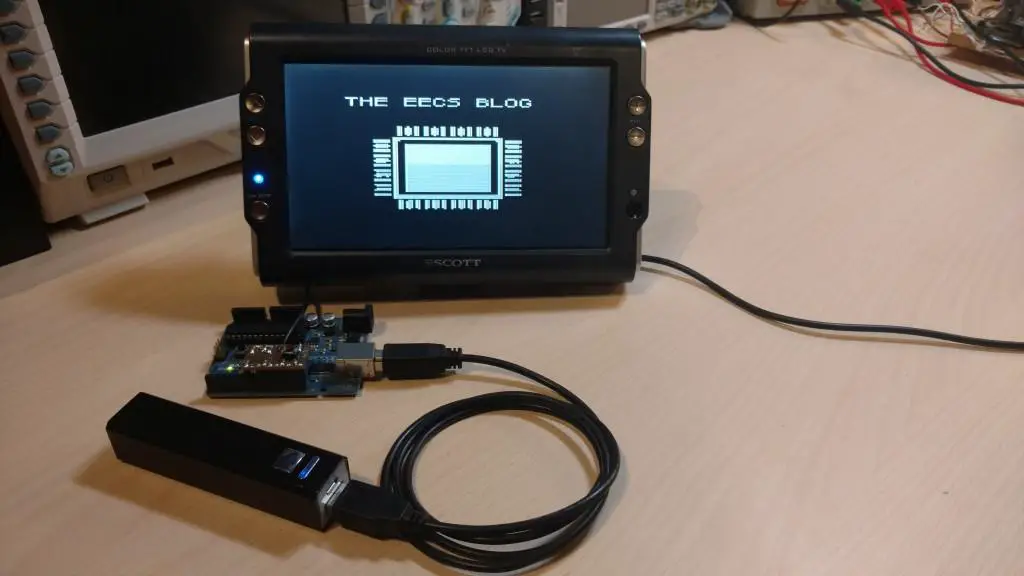
Output:
About
In this tutorial, you will learn how to output video from an Arduino and display it on a TV. We will make a board/cable adapter that will connect the Arduino to the TV through the RCA input. Then we’ll look at some of the functions available to us in the TVout library and use them to output something to the screen.
If you would like to know how to output an image to the TV see this post.
Hardware used:
- #adAmazon LinkArduino
Hardware Connections
In this table, you can see which pins you need to use for Sync and Video depending on what board you are using.
| Arduino | SYNC | VIDEO | AUDIO |
|---|---|---|---|
| NG,Decimila,UNO | 9 | 7 | 11 |
| Mega | 11 | A7(D29) | 10 |
| sanguino | 13 | A7(D24) | 8 |
| Leonardo | 9 | 8 | 11 |
Source: https://github.com/Avamander/arduino-tvout
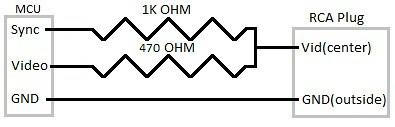
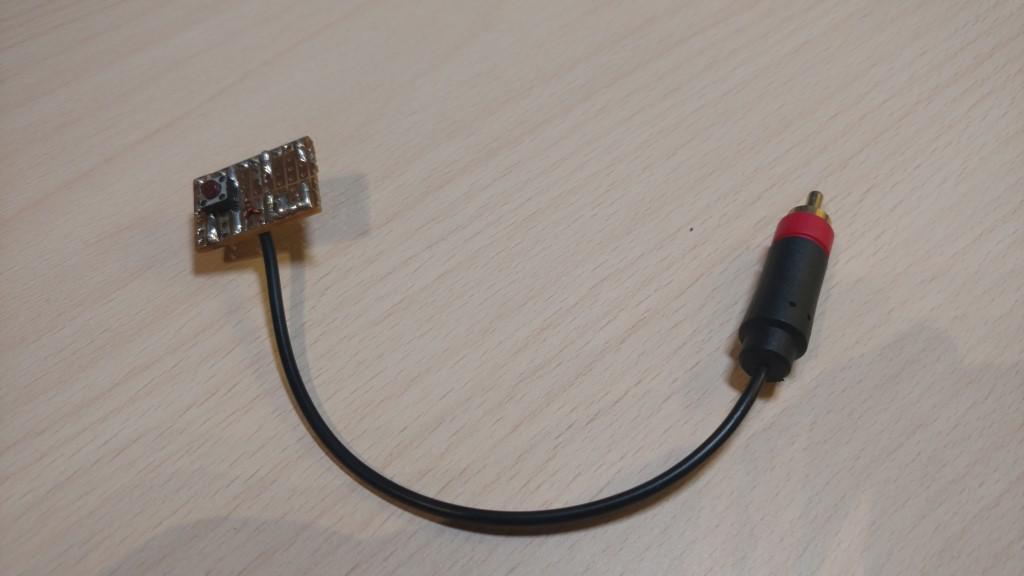
According to the schematic, I made a board that easily plugs into the Arduino. I also added a button between ground and pin 11 to be used as an input(see the second code example).
Software
You first have to install the TVout library. You can do that by using the Arduino library manager. If you don’t exactly know how to install a library see the first part of this tutorial.
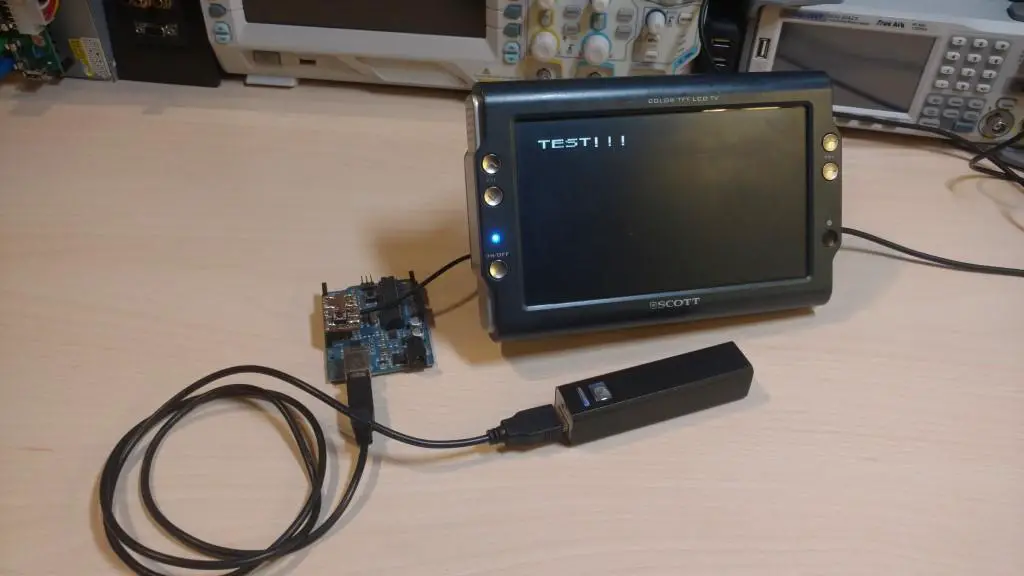
For the first example let’s do something simple and just output some text to the screen.
#include <TVout.h>
#include <fontALL.h>
TVout TV;
void setup()
{
//Setup display. (PAL/NTSC, resolution width, resolution height)
TV.begin(PAL,120,96);
//Select font.
TV.select_font(font6x8);
}
void loop()
{
//Clear screen at the beginning of the loop.
TV.clear_screen();
//Set curosr position. (x,y)
TV.set_cursor(0, 10);
//Print text.
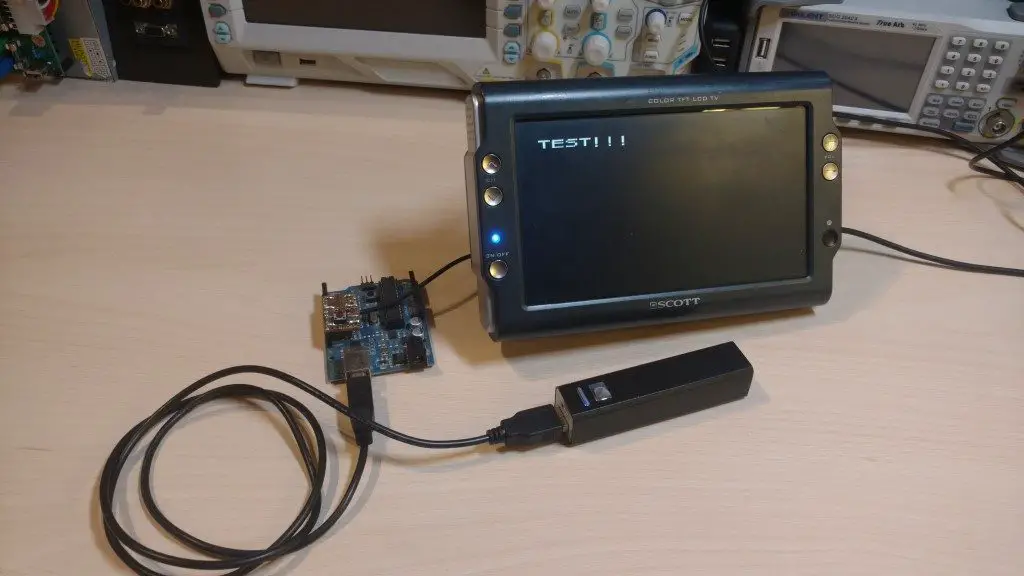
TV.println("TEST!!!");
TV.delay(60);
}
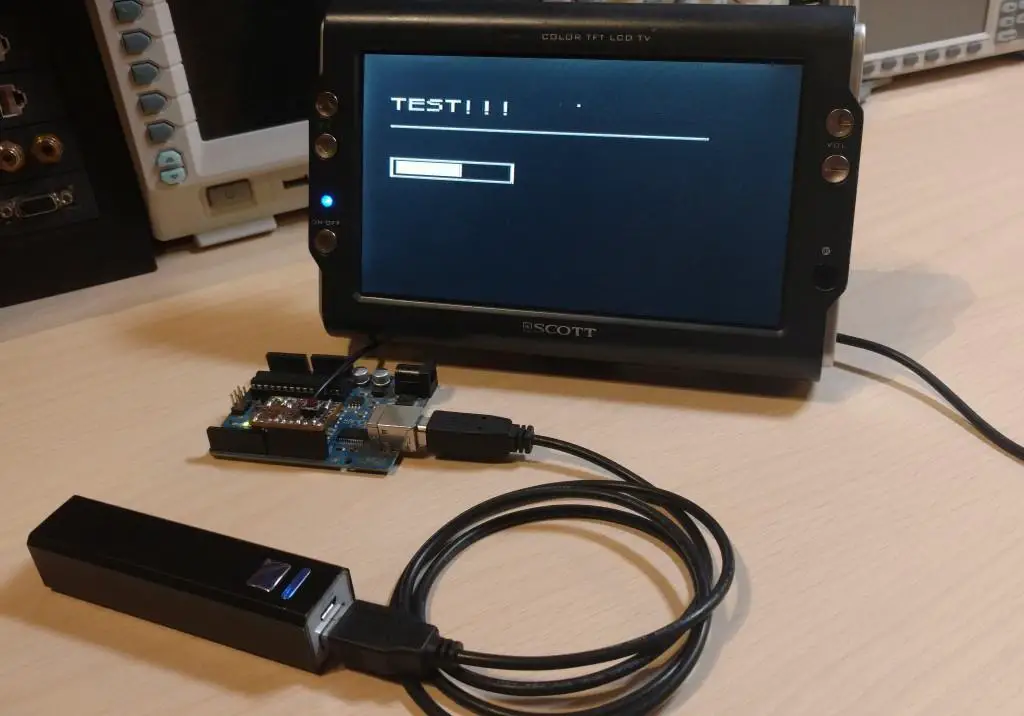
Output:
That was the bare minimum code you need to display something. Now let’s take a look at a few examples of other useful features.
#include <TVout.h>
#include <fontALL.h>
TVout TV;
int bar = 0;
int barMax = 36;
int buttonPin = 11;
void setup()
{
//Setup display.
TV.begin(PAL,120,96);
//Select font.
TV.select_font(font6x8);
//Set pin mode for button.
pinMode(buttonPin, INPUT_PULLUP);
}
void loop()
{
//Clear screen at the begining of the loop.
TV.clear_screen();
//Set cursor position. (x,y)
TV.set_cursor(0, 10);
//Print text.
TV.println("TEST!!!");
//Set individual pixel. (x,y, color) // 0 - black, 1 - white
TV.set_pixel(60,10,1);
//Draw line. (x1,y1,x2,y2,color) // 0 - black, 1 - white
TV.draw_line(0,25,100,25,1);
//Increment progress bar. (I haven't debounced the button but in this case that makes no differnce.)
if(digitalRead(buttonPin) == LOW && bar <= barMax){
bar++;
}else if(bar > barMax){
bar = 0;
}
//Using rectangles to make a progress bar.
//draw_rect(x,y,w,h,color,fill) // 0 - black, 1 - white
TV.draw_rect(0,43,40,10,1,0);
TV.draw_rect(2,45,bar,6,1,1);
TV.delay(60);
}
Output:
About
In this code snippet, we will see the difference between method hiding and overriding in C#.
The difference between method hiding and method overriding becomes evident when a class object is used polymorphically. The child version of the method gets called only when the method is overridden. If the method is hidden(new keyword) the parent version of the method gets called. Meanwhile, if we don’t call a method polymorphically the new keyword will act in the same way as the override keyword does and hide the original parent implementation of the method.
Let’s have a look at the code below to see how to hide a method.
Code:
using System;
namespace methodHiding
{
class Program
{
static void Main(string[] args)
{
MyChildClass MCC = new MyChildClass();
//Parent class method was overriden.
MCC.MyMethod();
//Parent class method was hidden.
MCC.MySecondMethod();
//As you can see there is no difference between hiding and overriding if the class isn't used polymorphically.
//The child version of the method gets called in both cases.
//Polymorphism.
MyParentClass MPC = new MyChildClass();
//Parent class method was overriden.
MPC.MyMethod();
//Parent class method was hidden.
MPC.MySecondMethod();
//As you can see when we use the class polymorphicly there is a difference between hiding and overriding.
//The child version of the method gets called only when the method is overridden. If the method is hidden(new keyword) the parent version of the method gets called.
Console.ReadLine();
}
}
class MyParentClass
{
public virtual void MyMethod()
{
Console.WriteLine("Message from MyMethod.");
}
public virtual void MySecondMethod()
{
Console.WriteLine("Message from MySecondMethod.");
}
}
class MyChildClass : MyParentClass
{
//This version of the method will override the original implementation from MyParentClass.
public override void MyMethod()
{
Console.WriteLine("A little different message from MyMethod.");
}
//This version of the method will hide the original implementation from MyParentClass.
public new void MySecondMethod()
{
Console.WriteLine("A little different message from MySecondMethod.");
}
}
} Resulting output:
About
In this code snippet, we will take a look at the using keyword in C#.
The using keyword can be used as a directive to include a namespace or it can be used as a statement. Using it as a statement the using keyword ensures that the dispose() method gets called(even if an exception occurs).
When you are done using a resource the dispose() method needs to be called. It is implemented by most classes that work with IO resources such as files, network connections, … We can do what using does manually with the try catch block, but it’s not as elegant and compact.
Note: using doesn’t catch and can’t handle exceptions, it only ensures your resource is properly disposed of(even if an exception occurs). You must still use the try catch block to catch and handle exceptions.
Let’s have a look at the code below to see how to use the using keyword.
Code:
using System; // <= The "using" keyword can be used as a directive to include a namespace,
using System.IO;
namespace UsingKeyword
{
class Program
{
static void Main(string[] args)
{
//or it can be used as a statement.
//Using the "using" keyword ensures that the dispose() method gets called(even if an exception occurs).
//When you are done using a resource the dispose() method needs to be called.
//It is implemented by most classes that work with IO resources such as files, network connections, ...
using (StreamWriter writer = new StreamWriter(@"C:\users\DTPC\Desktop\myFile.txt"))
{
writer.WriteLine("Some text.");
}
//
//The code above is almost the same as the code bellow, just more compact.
//
StreamWriter writer2 = null;
try
{
writer2 = new StreamWriter(@"C:\users\DTPC\Desktop\myFile2.txt");
writer2.WriteLine("Some other text.");
}
catch (Exception ex)
{
Console.WriteLine(ex.Message);
Console.ReadLine();
}
finally
{
//This always executes.
if (writer2 != null)
{
writer2.Close();
writer2.Dispose();
}
}
}
}
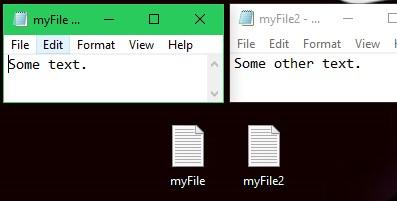
} Resulting output:
About
In this code snippet, we will learn the basics of how to work with the console in C#.
We will see how to write text to the console, read text from the console, change the text and background color and change the cursor position.
Let’s have a look at the code below to see work with the console.
Code:
using System;
namespace WorkingWithTheConsole
{
class Program
{
static void Main(string[] args)
{
//Sets the background color.
Console.BackgroundColor = ConsoleColor.Gray;
//Sets the text color.
Console.ForegroundColor = ConsoleColor.Red;
//Writes text to the conssole.
Console.Write("Hi.");
//Writes text to a new line in the conssole.
Console.WriteLine();
Console.WriteLine("Hi.");
//Set the cursor postion.
Console.SetCursorPosition(10,10);
Console.WriteLine("Enter something.");
//Waits for user to input a string and press enter.
string inputStr = Console.ReadLine();
Console.WriteLine(inputStr);
Console.WriteLine("Press a key.");
//Gets the key pressed by the user.
char key = Console.ReadKey().KeyChar;
Console.WriteLine("The " + key +" key was pressed");
//Makes a beep.
Console.Beep(2000, 500); //(frequency, time of beep)
//At the end of your program if you want for the console window to stay open add:
Console.ReadLine(); //Or ReadKey()
//The console will now wait for your input before closing.
}
}
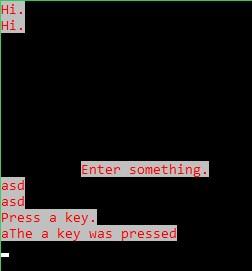
}