
Controlling Electronics Lab Instruments Over The Network From Your PC

lab instruments controller web

About

In this post, I’ll show you how to control your electronics lab equipment over the network using SCPI commands.

To quote Wikipedia:
“The Standard Commands for Programmable Instruments defines a standard for syntax and commands to use in controlling programmable test and measurement devices, such as automatic test equipment and electronic test equipment.”

“The physical hardware communications link (physical layer) is not defined by SCPI. While it was originally created for the IEEE-488.1 (GPIB) bus, SCPI can also be used with RS-232, RS-422, RS-485, USB, Ethernet, VXIbus, HiSLIP, etc.”

Generally, I would recommend you use the vendor tools so you don’t have to make/code anything on your own. However, you might need different software for each manufacturer, you might have top pay for some of the software, maybe you want some extra features that are not included, or you might want to integrate the control into your own system. This was the case for me because I am working on an MES(manufacturing execution system) application that needs to be able to control any potential measurement equipment on an assembly line, for example.

For this reason, I made a library(available as a NuGet package), additionally, I made two UIs for it, a Windows app and a web app in a Docker container. More about the app at the end of the post.

Note: Many years ago, I remember using LabVIEW for controlling my oscilloscope. However, when I looked into using it again a few years ago, I stumbled upon this issue, which is why I wouldn’t recommend using it.

SCPI in more detail, commands and how to send them

First, let’s take a look at the composition of an SCPI command.
Anatomy of a command template
:OUTPut[<n>]:LOAD {<ohms>|INFinity|MINimum|MAXimum}
OUTPutMixed case marks the abbreviation. Capitals alone, or the whole word.
[<n>]A channel suffix, and optional. Bare means channel 1.
{ A | B }A choice of literal values. Pick exactly one.
<ohms>A placeholder you substitute with a number.
FUNCtionValid FUNCValid FUNCtiError

The abbreviation rule catches nearly everyone: FUNCtion is not a typo and not house style. It means send the capitals, or send the whole word. Nothing in between.

Now, let’s take a look at some of the commands
SCPI quick reference
# Plain ASCII over a socket. No library needed:  nc 192.168.1.19 5025
# A line ending in ? is a query and answers back. Everything else just does something.

#=== EVERY INSTRUMENT =========================================================
# IEEE 488.2 common commands. Universal enough that *IDN? and *RST appear in all
# 36 vendor catalogs I keep; *OPC? in 35, *CLS in 34.

*IDN?                      # identify -> Siglent Technologies,SDM3065X,SDM36HCD801207,3.02.01.13
*RST                       # reset to a known state. always start a script here
*CLS                       # clear the status registers and the error queue
*OPC?                      # -> 1 only once the command queue drains. your sync primitive
*WAI                       # same idea, but blocks the instrument instead of you
*ESR?                      # standard event status register: what went wrong
*STB?                      # status byte
*TST?                      # run the self-test -> 0 means it passed
*OPT?                      # which options are installed
*SAV 1                     # store the current front-panel setup in slot 1
*RCL 1                     # ...and get it back
SYSTem:ERRor?              # -> 0,"No error"  pops ONE entry per read. read it in a loop
SYSTem:VERSion?            # which SCPI revision the firmware claims

#=== MULTIMETER ===============================================================
# MEASure:* is the lazy one-shot: it configures, triggers and reads in one go.

MEAS:VOLT:DC?              # -> +8.39421150E+00
MEAS:VOLT:AC?
MEAS:CURR:DC?
MEAS:RES?                  # 2-wire.  MEAS:FRES? is 4-wire
MEAS:FREQ?
MEAS:CAP?
MEAS:TEMP?

# Split it apart when you're measuring in a loop. Configure once, read many:
CONF:VOLT:DC AUTO          # set up, but do NOT trigger
READ?                      # trigger and return
INIT                       # trigger into memory...
FETC?                      # ...and collect later

VOLT:DC:NPLC 10            # integration time in line cycles. bigger = slower + quieter
VOLT:DC:RANG:AUTO ON

#=== POWER SUPPLY =============================================================

APPL CH1,5,1                # 5 V with a 1 A limit, in one line
OUTP:STAT ON
MEAS:VOLT:DC? CH1          # what it is ACTUALLY delivering, not what you asked for
MEAS:CURR:DC? CH1
MEAS:POWE:DC? CH1

#=== FUNCTION GENERATOR =======================================================

SOUR1:FUNC SIN              # SIN SQU RAMP PULS NOIS DC ARB
SOUR1:FREQ 1000
SOUR1:VOLT 4
OUTP1:LOAD 50              # or INF for high-Z. get this wrong and amplitude is 2x off
OUTP1:STAT ON

#=== OSCILLOSCOPE =============================================================

:AUToscale                 # the "just show me something" button
:RUN  :STOP  :SINGle
:CHAN1:DISP ON
:CHAN1:SCAL 1              # volts per division
:CHAN1:COUP DC             # AC | DC | GND
:TIM:MAIN:SCAL 1e-3        # seconds per division. A 1 kHz sine needs ~1e-4 to be visible
:TRIG:SWE AUTO             # AUTO | NORMal | SINGle
:MEAS:VPP? CHAN1            # -> 4.16E+00
:MEAS:VRMS? CHAN1
:MEAS:FREQ? CHAN1

# Pulling the actual samples off, and the screen as a PNG:
:WAV:SOUR CHAN1
:WAV:FORM BYTE              # WORD | BYTE | ASCii
:WAV:DATA?                 # -> #9000001000<binary>  488.2 block: #, len-of-len, len, data
:DISP:DATA?                # screenshot, same block framing. read by length, never to a timeout

#=== ELECTRONIC LOAD ==========================================================

INP:STAT ON
MEAS:VOLT?   MEAS:CURR?   MEAS:POW?

#=== THE THREE THINGS THAT WILL BITE YOU ======================================

# 1. Mixed case in the manual marks the abbreviation. Same command, both legal:
CONFigure:VOLTage:DC AUTO
CONF:VOLT:DC AUTO          # ...but CONFig is an error. Capitals, or the whole word.

# 2. Nothing is synchronous. Set, wait, THEN measure, or you read the old value.
SOUR1:VOLT 4
*OPC?                      # -> 1
MEAS:VOLT:AC?              # -> +1.41326700E+00

# 3. Silence is the default failure mode. No reply is not a timeout. Ask why:
C1:HARM?                   # (nothing comes back at all)
SYST:ERR?                  # -> -113,Undefined header,C1:HARM?
SYST:ERR?                  # -> 0,"No error"   queue drained

# And a bonus: not everything is SCPI-shaped. This is real, working Siglent:
C1:BSWV WVTP,SINE,FRQ,1000,AMPL,4   # comma bag, no colon tree. vendors do this.
Finally, let’s see how to actually send it to the instrument. These are the possible transports, we’ll be using VXI-11 over Ethernet (TCP socket).
Transports
TransportHow it shows up
GPIB / IEEE-488 The original. A parallel bus and a connector the size of a matchbox. Still everywhere in older labs.
RS-232 Line-based, and identical to a socket once it is open. 9600-8-N-1 unless the manual says otherwise.
USBTMC USB Test & Measurement Class, a bulk endpoint impersonating a bus.
Raw socket TCP, conventionally port 5025, newline-terminated. The simplest thing that works.
VXI-11 ONC RPC over TCP. Ask the portmapper on port 111 for the core port. It is dynamic, so never hard-code it. Then create_link, device_write, device_read.
HiSLIP The modern replacement for VXI-11, on port 4880.
Finally, let’s see how to actually send it to the instrument. These are the possible transports, we’ll be using VXI-11 over Ethernet (TCP socket).
What actually goes on the wire
# SCPI itself is text. What wraps it is not always text, and that is the part
# that surprises people the first time they put a packet capture next to it.

#=== 1. RAW SOCKET: nothing but ASCII =========================================
# The whole message. Six bytes, and you could type them by hand.

  2A   49   44   4E   3F   0A
  '*'  'I'  'D'  'N'  '?'  LF

# That is the entire protocol on this transport. No length prefix, no header,
# no checksum. The newline is the only framing there is.

#=== 2. VXI-11: the same ASCII inside a binary envelope =======================
# ONC RPC over TCP, XDR-encoded, big-endian. The command becomes a payload.

  80 00 00 44   record marker: last-fragment bit | 68 bytes follow
  00 00 00 07   xid, to match the reply to this call
  00 00 00 00   msg_type = CALL
  00 00 00 02   RPC version 2
  00 06 07 AF   program 395183 = VXI-11 DEVICE_CORE
  00 00 00 01   program version 1
  00 00 00 0B   procedure 11 = device_write
  00 00 00 00   cred: AUTH_NULL flavour
  00 00 00 00   cred: length 0
  00 00 00 00   verf: AUTH_NULL flavour
  00 00 00 00   verf: length 0
  00 00 00 01   the link id create_link handed back
  00 00 13 88   io_timeout = 5000 ms
  00 00 00 00   lock_timeout = 0
  00 00 00 08   flags: END on the final byte
  00 00 00 06   opaque length: 6 bytes of payload
  2A 49 44 4E   '*' 'I' 'D' 'N'   <- the SCPI, at last
  3F 0A 00 00   '?' LF, then 2 zero bytes: XDR pads to 4

# 6 bytes of SCPI, 72 bytes on the wire. The padding is not optional: XDR aligns
# every opaque field to a 4-byte boundary, and an instrument will reject the call
# if you leave it out. This is why a VXI-11 client is a few hundred lines and a
# raw-socket client is thirty.

#=== 3. THE REPLY CAN BE BINARY TOO ===========================================
# Text queries answer with a line. Waveforms and screenshots answer with an
# IEEE 488.2 definite-length block, which is ASCII header + raw bytes:

  # 8 0 0 0 0 1 0 0 0 <1000 raw bytes>
  │ │ └──── eight ASCII digits: the length ────┘
  │ └───── how many length digits follow
  └─────── a block starts here

# Read it by that declared length. Never read to a newline and never read until
# the socket goes quiet: binary payloads contain 0x0A bytes that are data, not
# terminators, and they arrive in several packets. Both mistakes truncate the
# waveform and neither one raises an error.
#
# A leading '#0' means indefinite length instead: data runs until the terminator.
Code implementation:
# Open a raw socket to the instrument. Port 5025 is the SCPI convention.
$client = [System.Net.Sockets.TcpClient]::new('192.168.1.19', 5025)
$stream = $client.GetStream()
$stream.ReadTimeout = 5000          # never block forever on a silent instrument

$writer = [System.IO.StreamWriter]::new($stream)
$reader = [System.IO.StreamReader]::new($stream)
$writer.NewLine   = "`n"           # plain LF. Windows would send CRLF by default
$writer.AutoFlush = $true

# Send one command. A line ending in ? is a query, so it answers back.
$writer.WriteLine('*IDN?')
$reply = $reader.ReadLine()

Write-Host $reply
# -> Siglent Technologies,SDM3065X,SDM36HCD801207,3.02.01.13

$client.Close()

Lab Equipment Controller Software

Lab Equipment Controller(GitHub repo) is a software suite I created for discovering and controlling lab instruments (oscilloscopes, function generators, …) over Ethernet or RS-232, using SCPI. It scans the local network, lists the instruments it finds, and lets you connect to several at once and drive each one from a command console, instrument-aware quick-command buttons, or a small scripting window.

Originally built as a desktop app with C# / WinForms targeting .NET 10 (net10.0-windows) and then extended so the same core engine also drives a web version, hosted in a docker container, a cross-platform CLI (lec) for benches without a desktop and for scripting a measurement into CI and the engine itself is on NuGet as LabEquipmentController, for driving instruments from your own code.

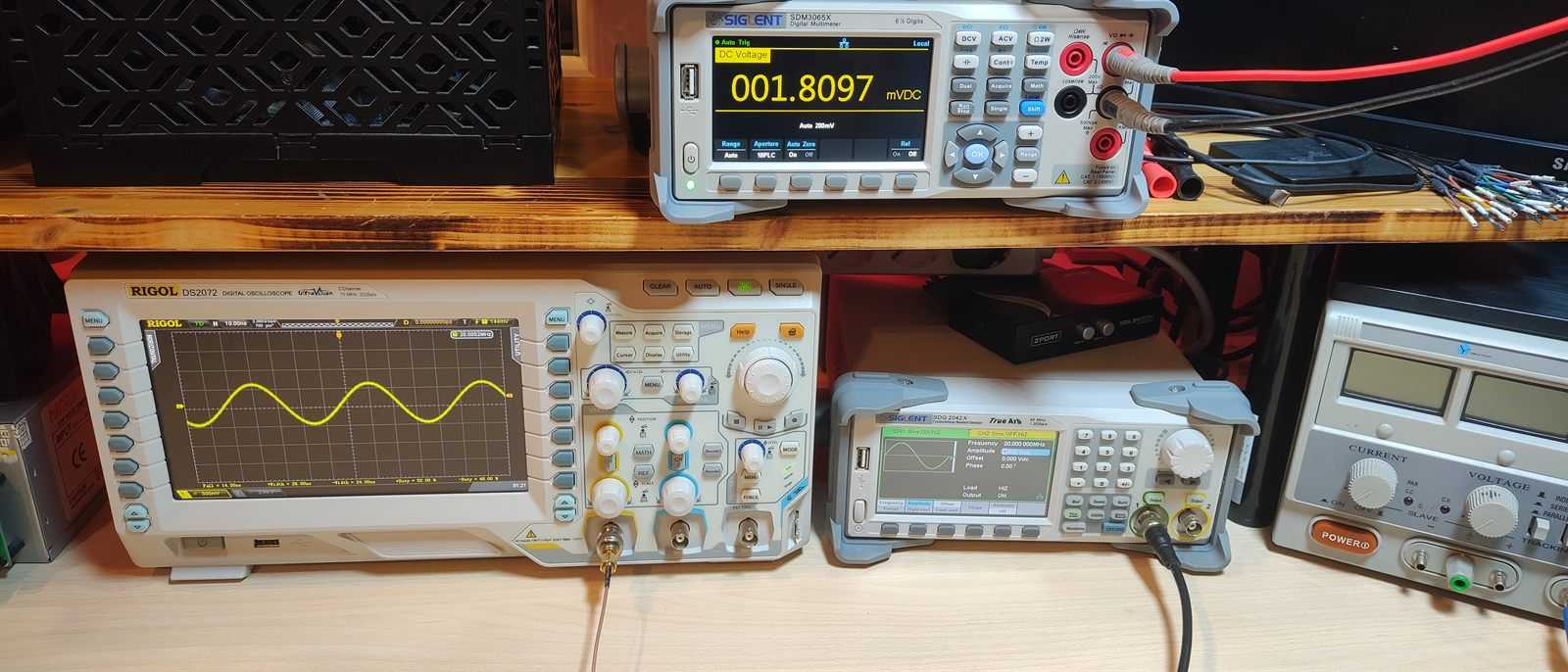
I tested the commands on a Rigol DS2202 oscilloscope, a Siglent SDG2042X generator and a Siglent SDM3065X multimeter, all answering over VXI-11. 

The oscilloscope, the generator and the multimeter on the bench
Left to right: the oscilloscope, the generator and, on the shelf above, the multimeter.

Scan, then a console per instrument. The sweep found all three; each opened its own tab, and the quick-command row is built from that family's catalog rather than a fixed list. The card's heading is itself the switch, Network Scan or Serial Scan, and it changes what the whole card is about. Here the oscilloscope's tab is in front, being polled for peak-to-peak voltage. The log carries every command and reply, and each numeric answer also lands in the results table with a timestamp.
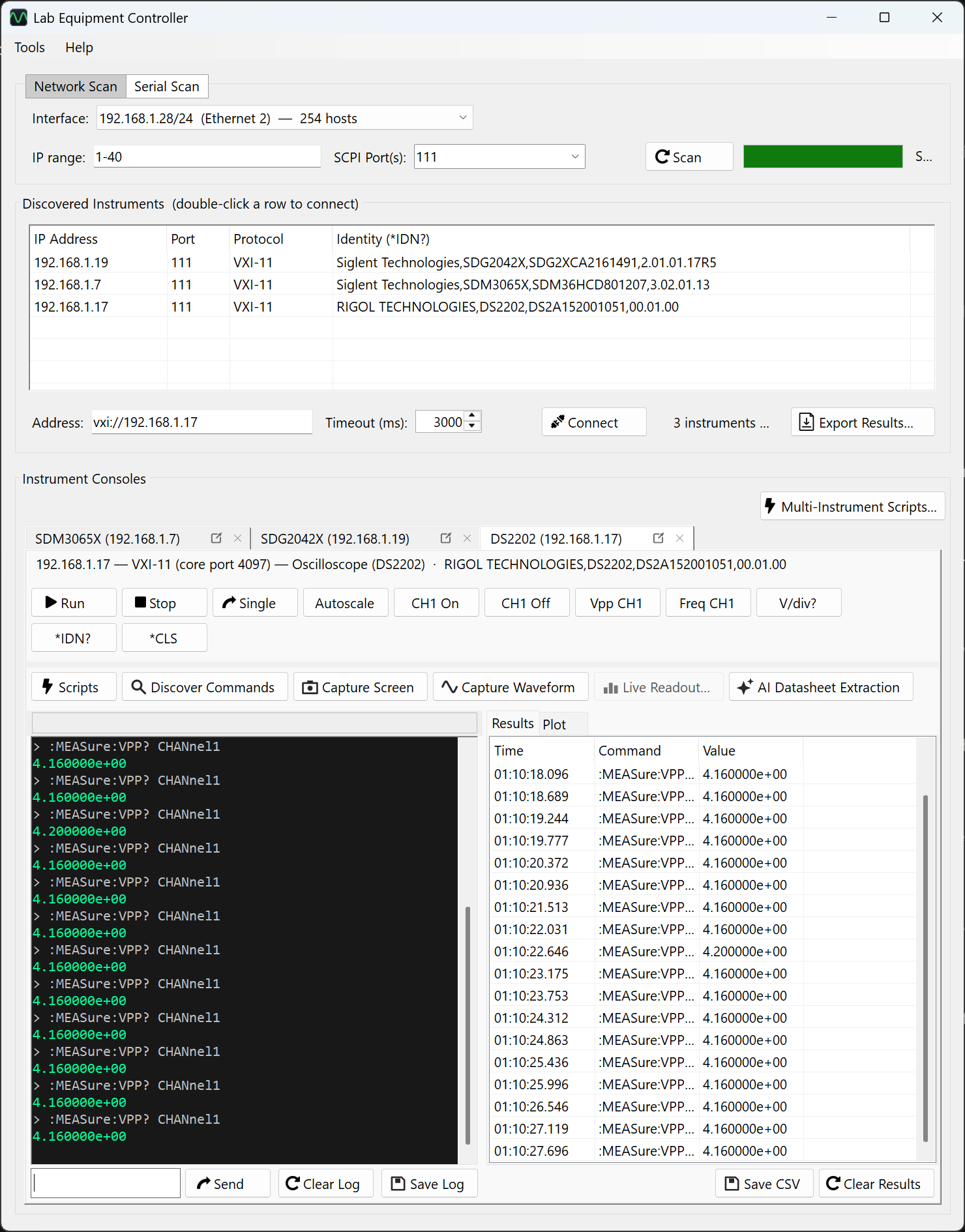
The main window: the scan card with its Network / Serial heading switch, the discovered instruments, and a console tab per instrument

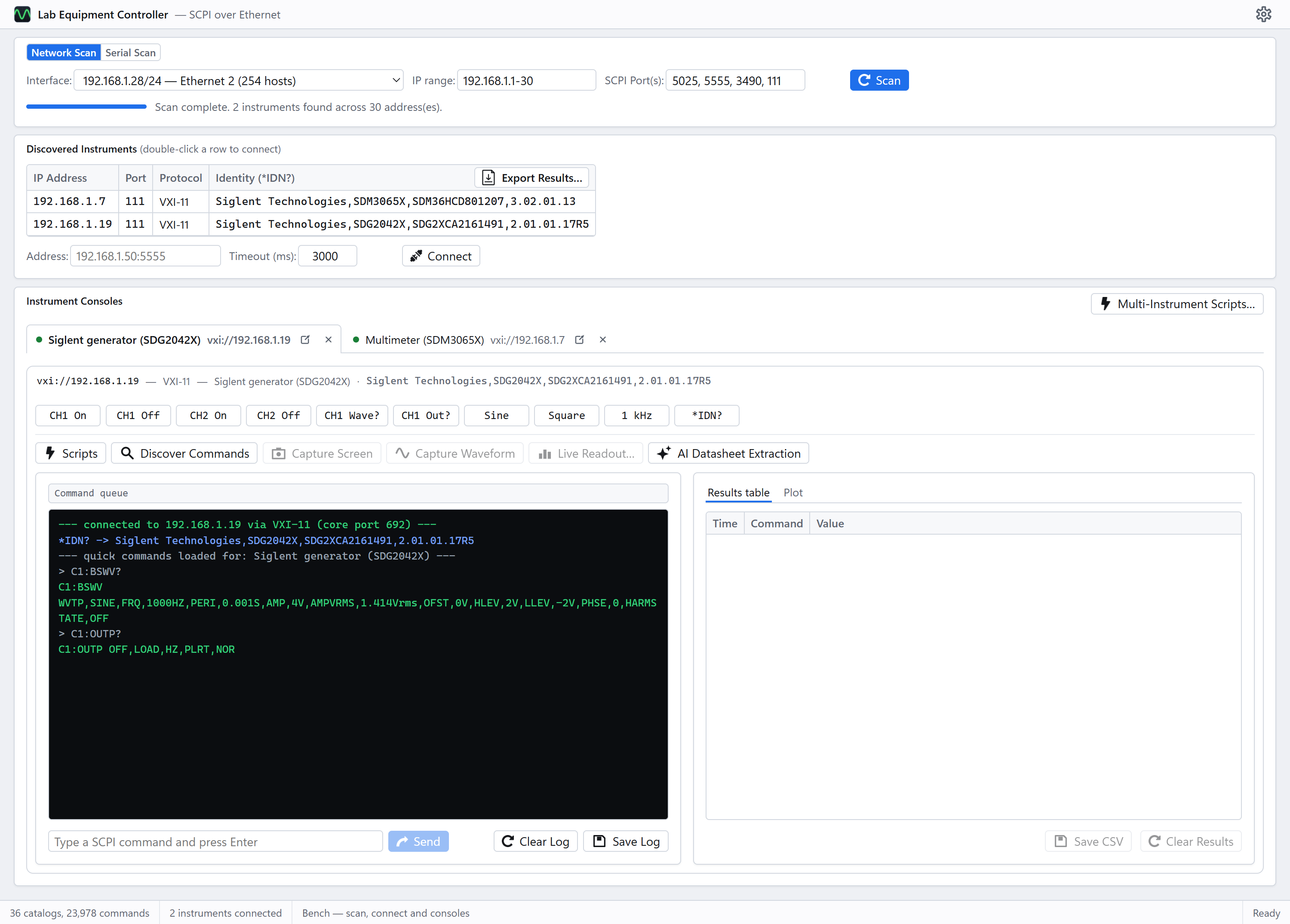
And the same bench in a browser. The web build is a control-for-control port of that window (same controls, same order, same words) served by a container that owns the sockets. Here it is against the same bench, with the meter and the generator connected and the generator's console in front. The rest of the screenshots are the desktop app.
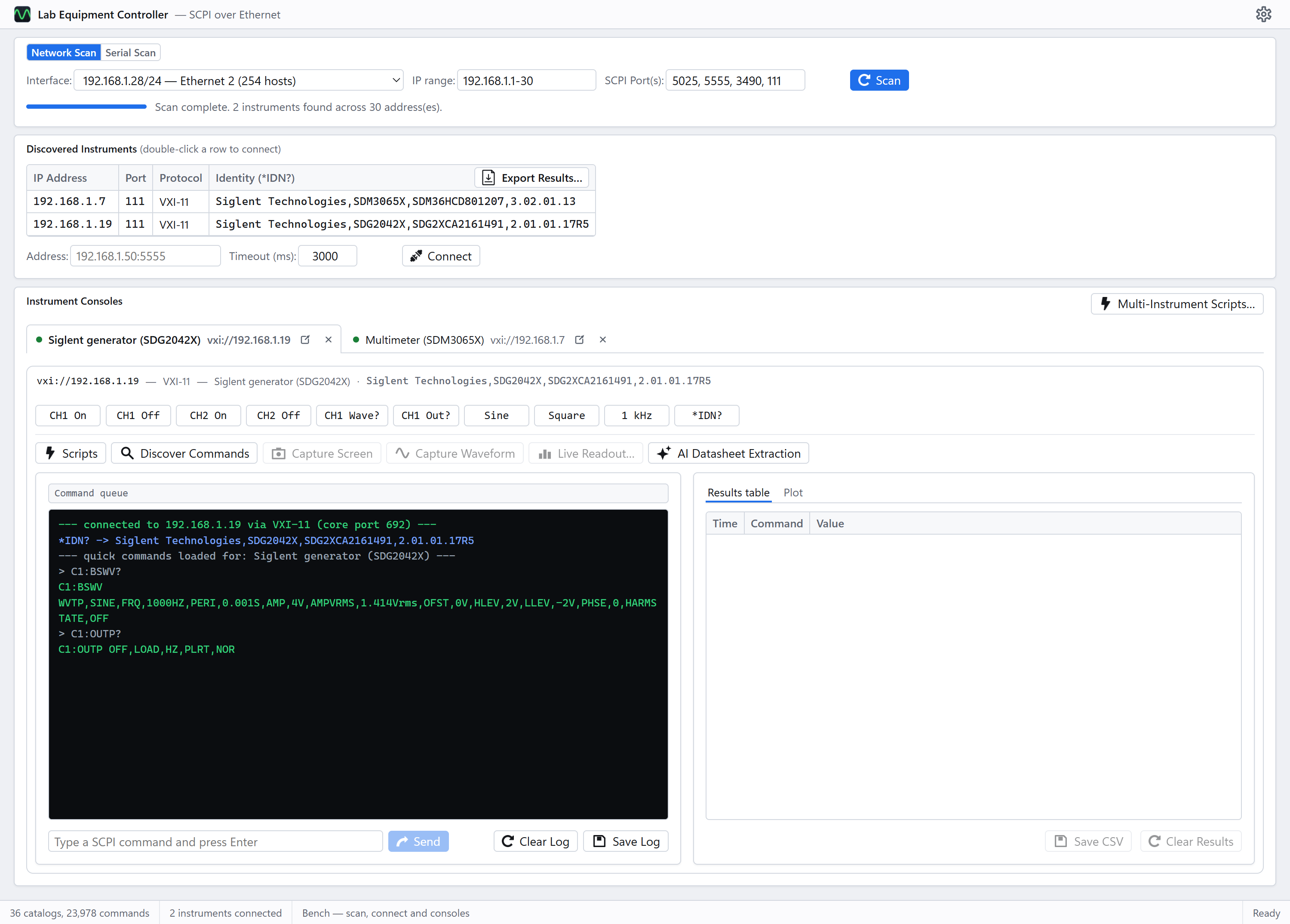
The web version: the same scan panel, discovered instruments and console tabs, in a browser

Any tab detaches into its own window, so instruments can be watched side by side. The recorded readings plot as they arrive: pick which column runs across and which are drawn up, switch either axis to log, and save the chart or the table.
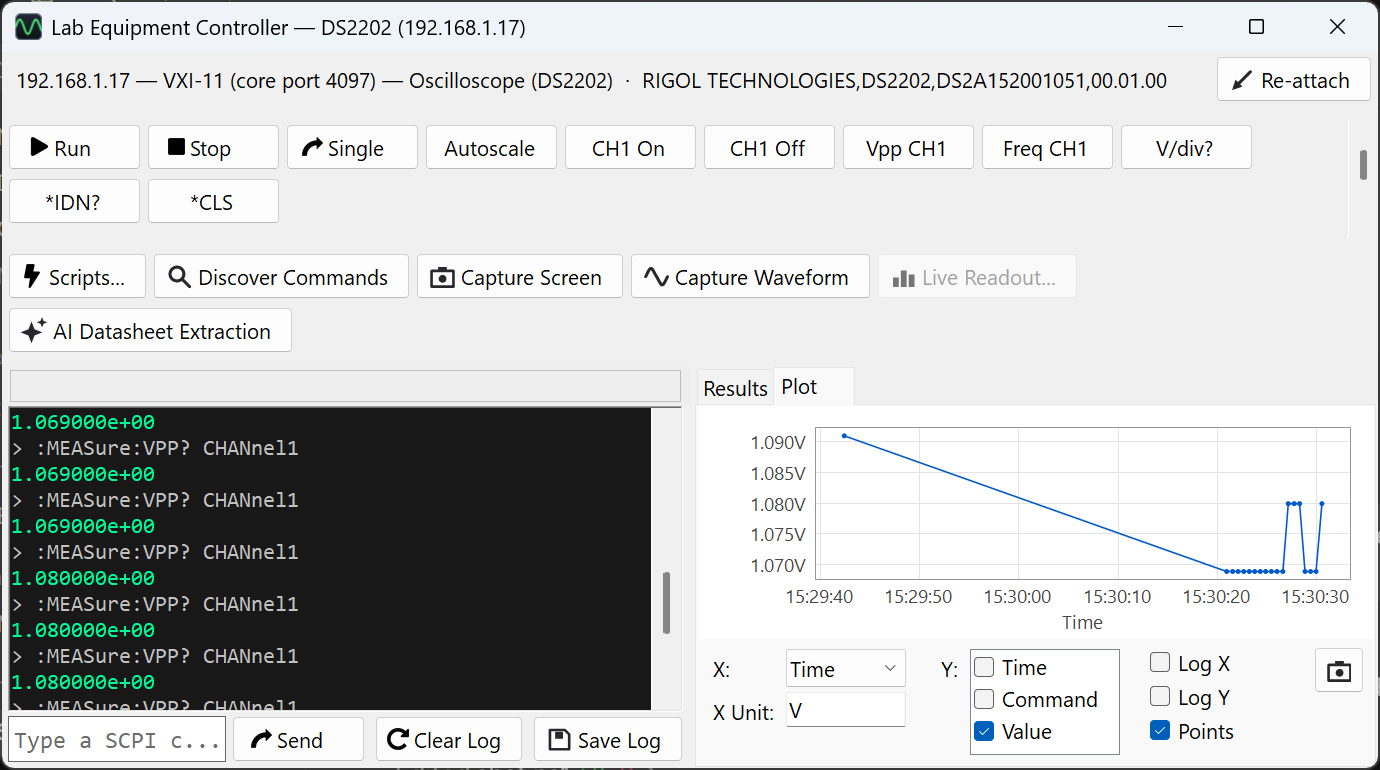
A detached console for the oscilloscope, with its recorded readings plotted

The command library browses all 36 catalogs, 23,978 commands, by manufacturer, with the vendor's own programming guide open beside them. A marks an entry confirmed on real hardware; the filter here is showing the 206-command Siglent SDM catalog narrowed to voltage commands, next to page 1 of the 158-page guide those entries were transcribed from.
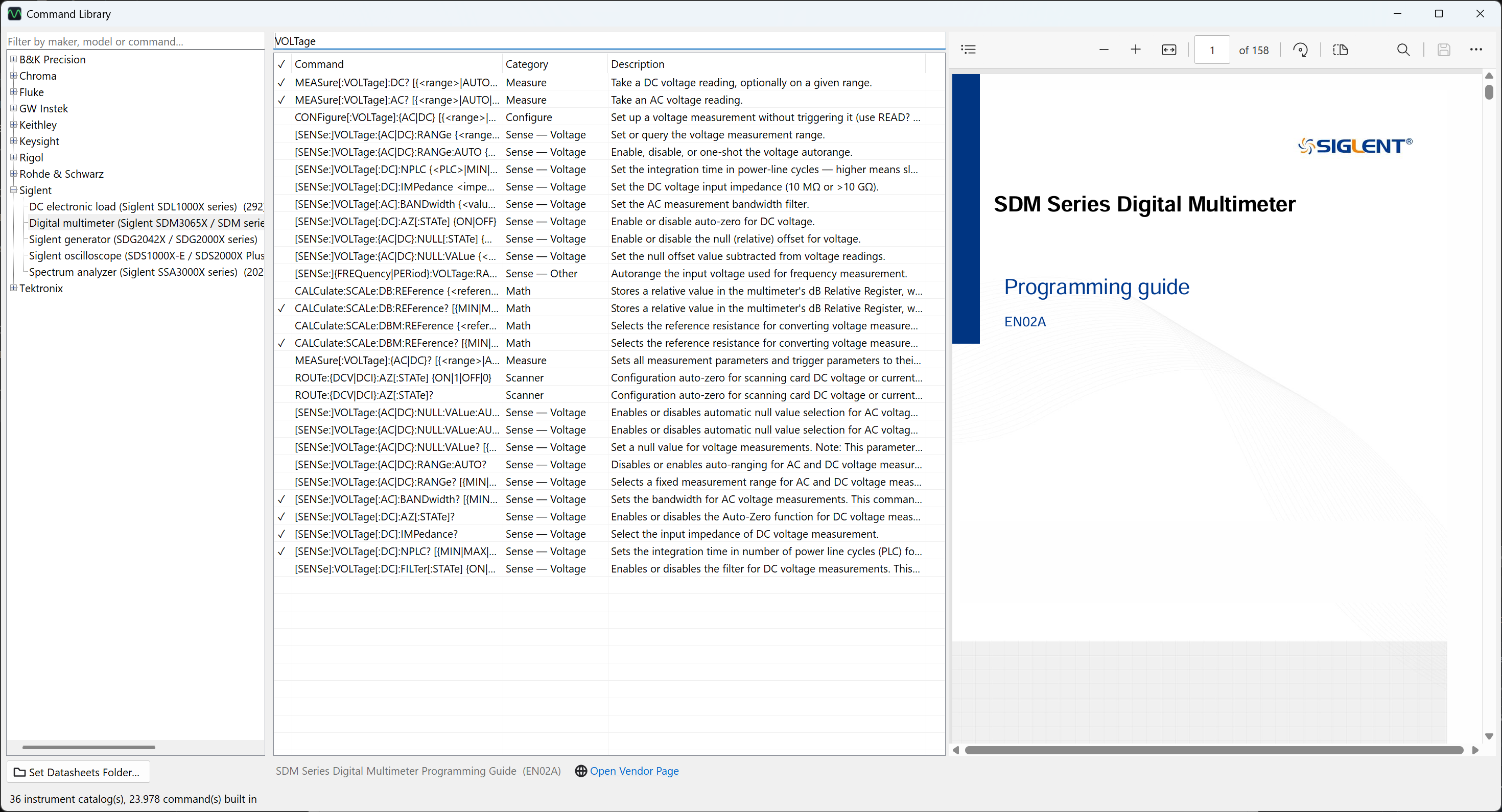
The Command Library: manufacturer tree, filtered commands, and the vendor guide beside them

One script, several instruments. DEVICE binds an alias to a model, the header shows what each resolved to on this bench, and WITH, FOR and RECORD interleave the generator and the scope inside one loop, which is the measurement a single-instrument script cannot express.

This is the shipped example, run as it comes: it sets the generator to a 2 Vpp sine, sets the scope up to look at the band, then walks 20 MHz to 35 MHz in 100 kHz steps, reading :MEASure:VRMS? at each one. 151 rows in 73 seconds, and the curve is the low-pass section of the board below: flat at about 750 mVrms to 24 MHz, through −3 dB at roughly 27.5 MHz, down to 181 mVrms at 35 MHz.
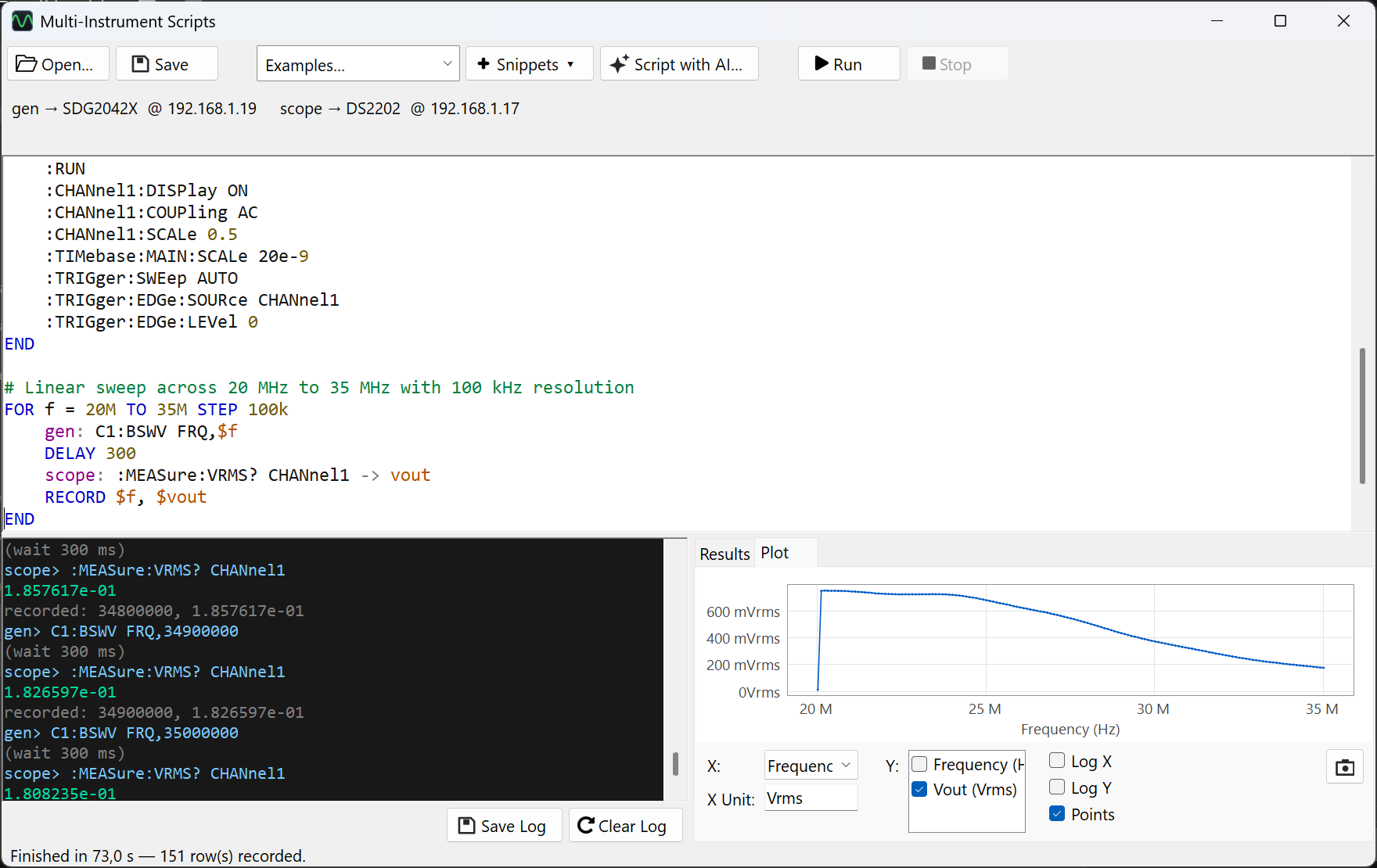
The multi-instrument script editor after running the filter-response example: the sweep loop, the log of commands and replies, and the measured roll-off plotted

The bench it was measured on

Wired for the sweep above: the generator's channel 1 feeds the filter's input, and the filter's output goes to channel 1 of the scope. That is the whole of what the example's opening comment asks for.
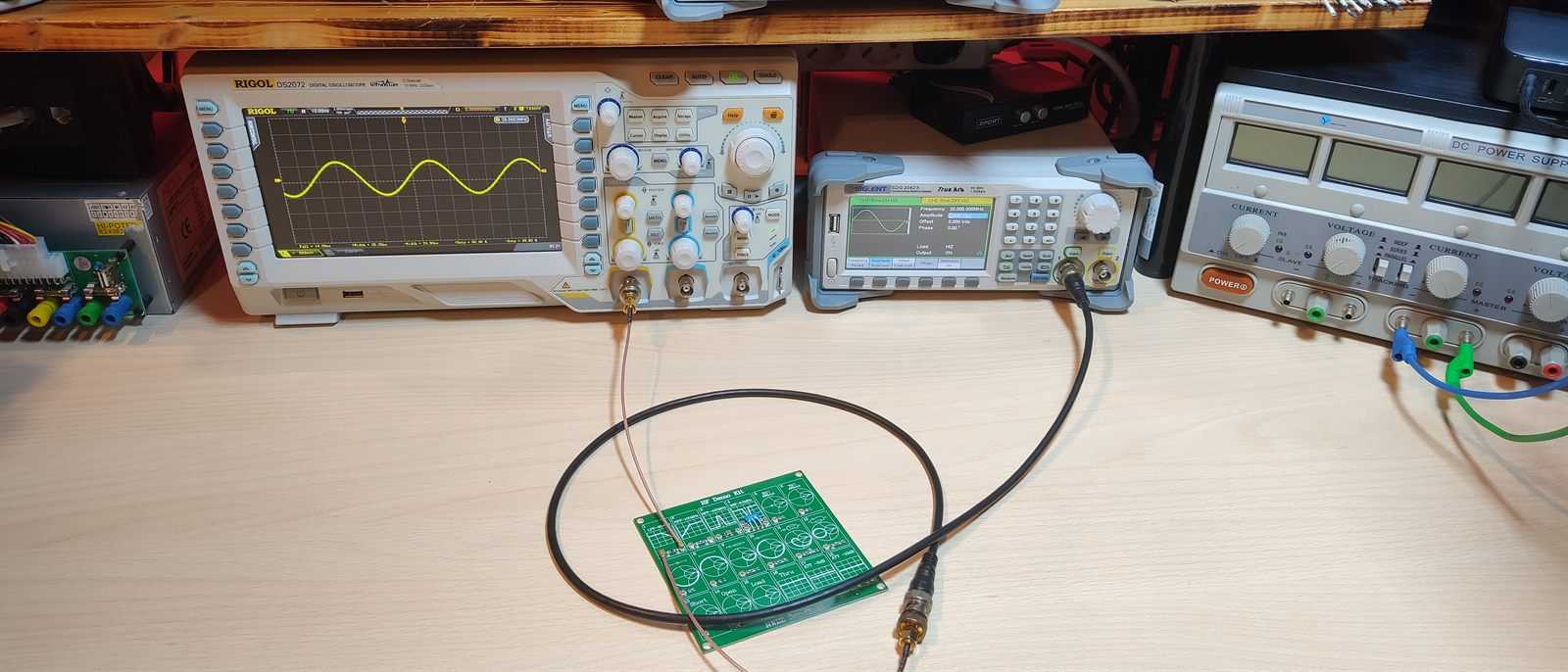
The generator and scope cabled to the filter board on the bench

The filter itself is one section of an RF demo board, a 30 MHz low-pass, which is why the sweep runs 20 to 35 MHz and why the curve turns over where it does.
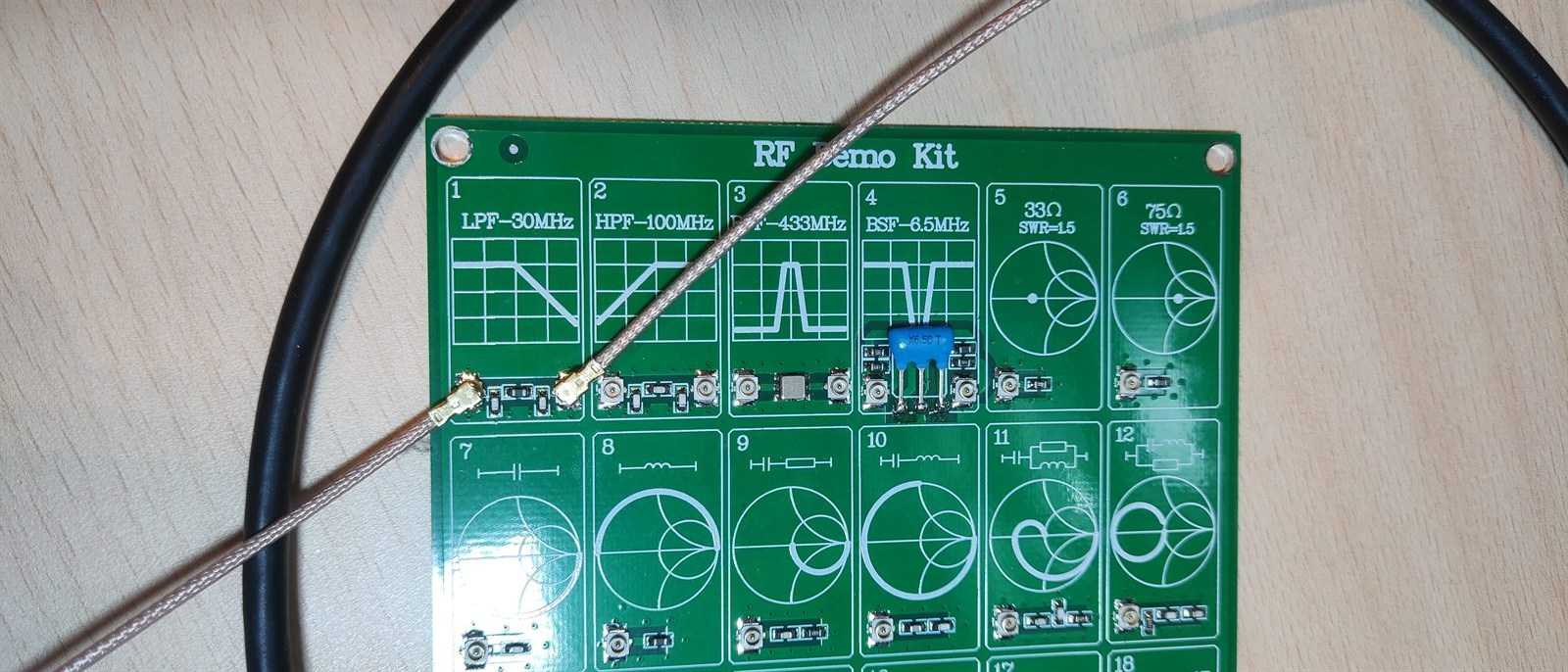
The RF demo board, with the coax on the low-pass filter section

Waveform capture pulls the trace off the scope and applies that vendor's own scaling to turn raw bytes into volts and seconds. That part is different for every manufacturer, and it is where a wrong answer looks most like a right one. Here the generator is feeding channel 1 a 20 MHz sine: 1,400 points, 2.12 V peak-to-peak across 280 ns, sampled every 200 ps. Run re-reads it on an interval so the trace follows the instrument.

A capture is drawn on cards. A card is a set of channels, so channels on one card share a vertical scale and compare directly, while a channel on its own card gets the scale to itself. Each card zooms independently (wheel, Ctrl+wheel, drag, or the three buttons), and one read of the instrument serves every card on screen.
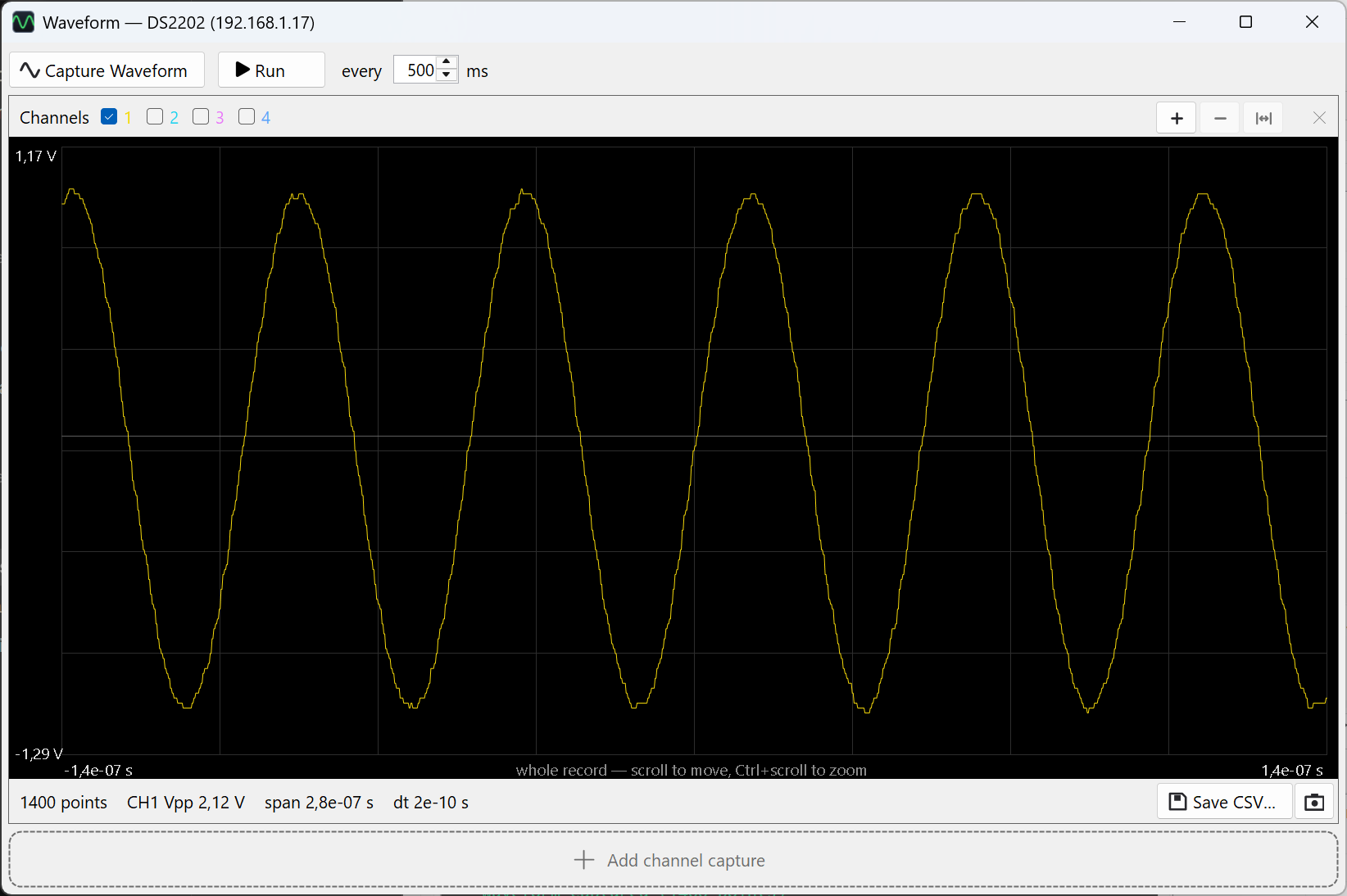
The waveform viewer: a 20 MHz sine captured from channel 1, with its channel chips, zoom controls and measurements

Or describe the measurement and let a model write the script. Bring your own AI provider and Script with AI… hands it the connected instrument's catalog, 343 documented commands for this generator, and tells it to use nothing else. Every command header that comes back is checked against that catalog, and the window says so rather than letting silence read as "verified".

It is a conversation: every exchange stays on screen and goes back with the next request, which is what makes the follow-up below, "now do the same at 5 Vpp and 10 kHz", a request at all. The line above the transcript says what that history costs to send, and Clear starts again without it. Nothing is run and nothing is saved: a draft reaches the editor when you press Use This Script, and runs when you press Run.
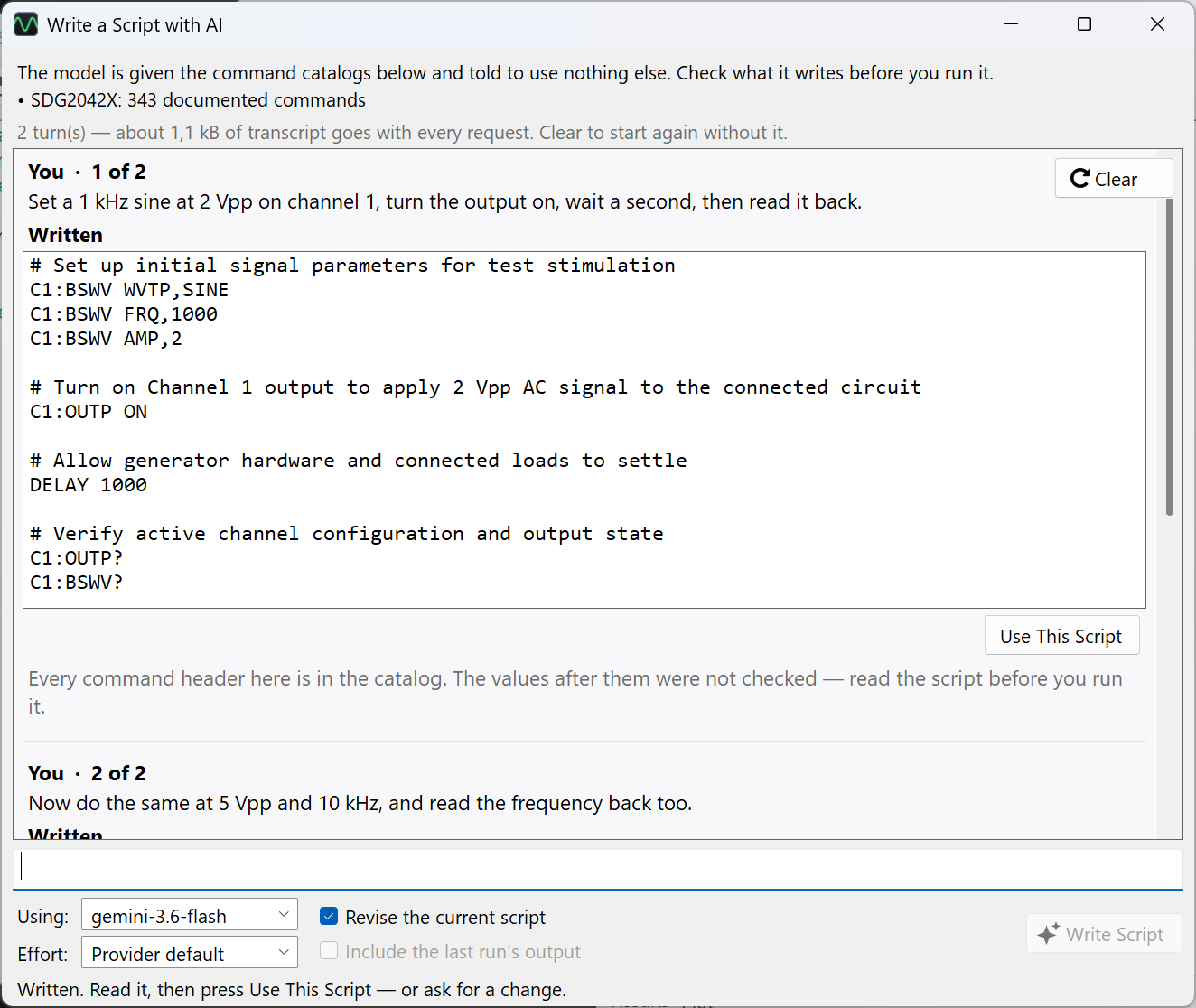
Write a Script with AI: the request, the script that came back, its catalog check, and a follow-up asking for a change

Leave a Reply

Your email address will not be published. Required fields are marked *

The following GDPR rules must be read and accepted:
This form collects your name, email and content so that we can keep track of the comments placed on the website. For more info check our privacy policy where you will get more info on where, how and why we store your data.